Admins can now require Multi-Factor Authentication (MFA) for everyone in their organization directly from the Admin settings, giving you centralized control over one of the most important layers of account security.
This is ideal for organizations that need consistent security policies applied across every user, rather than relying on each person to enable MFA on their own.
Why it matters
Organization-wide MFA enforcement is designed to strengthen account security by:
- Centralizing control: Require MFA for everyone in your organization from a single setting, instead of managing it user by user.
- Ensuring consistency: Every user follows the same security policy, with no gaps from individuals who haven't opted in.
- Protecting organization accounts: Stronger, uniform account security across your entire team, not just the users who chose it themselves.
- Avoiding disruption: Users who already have MFA configured won't be affected, there's no interruption to their workflow.
Previously, MFA could only be managed on an individual user basis, there was no organization-level setting Admins could use to require it across the board. Now, Admins have a single toggle to enforce MFA for everyone, making it easier to maintain consistent security standards and meet internal requirements. Log in as an Admin.
Using organization-wide MFA enforcement
1. Log in as an Admin.
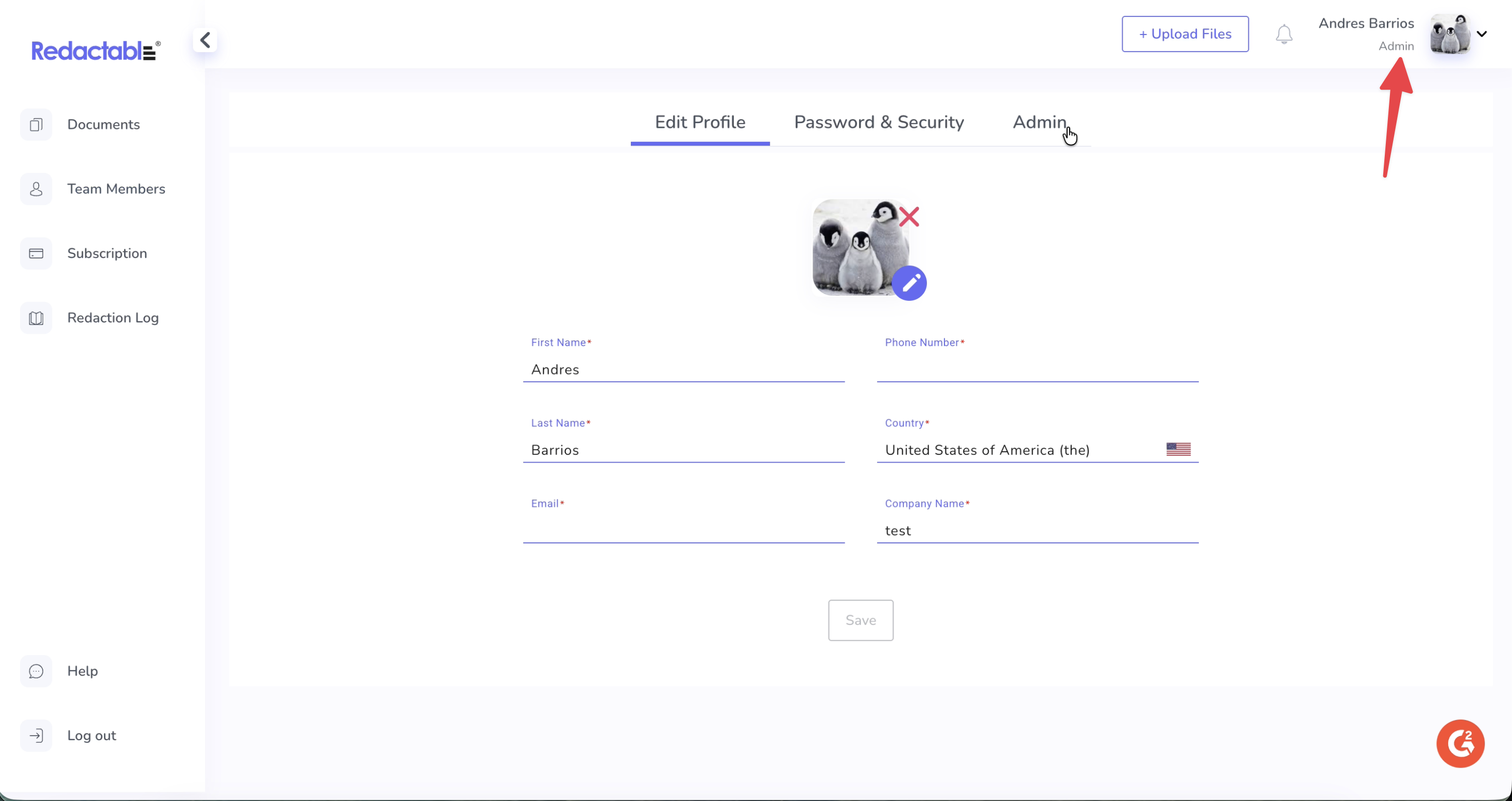
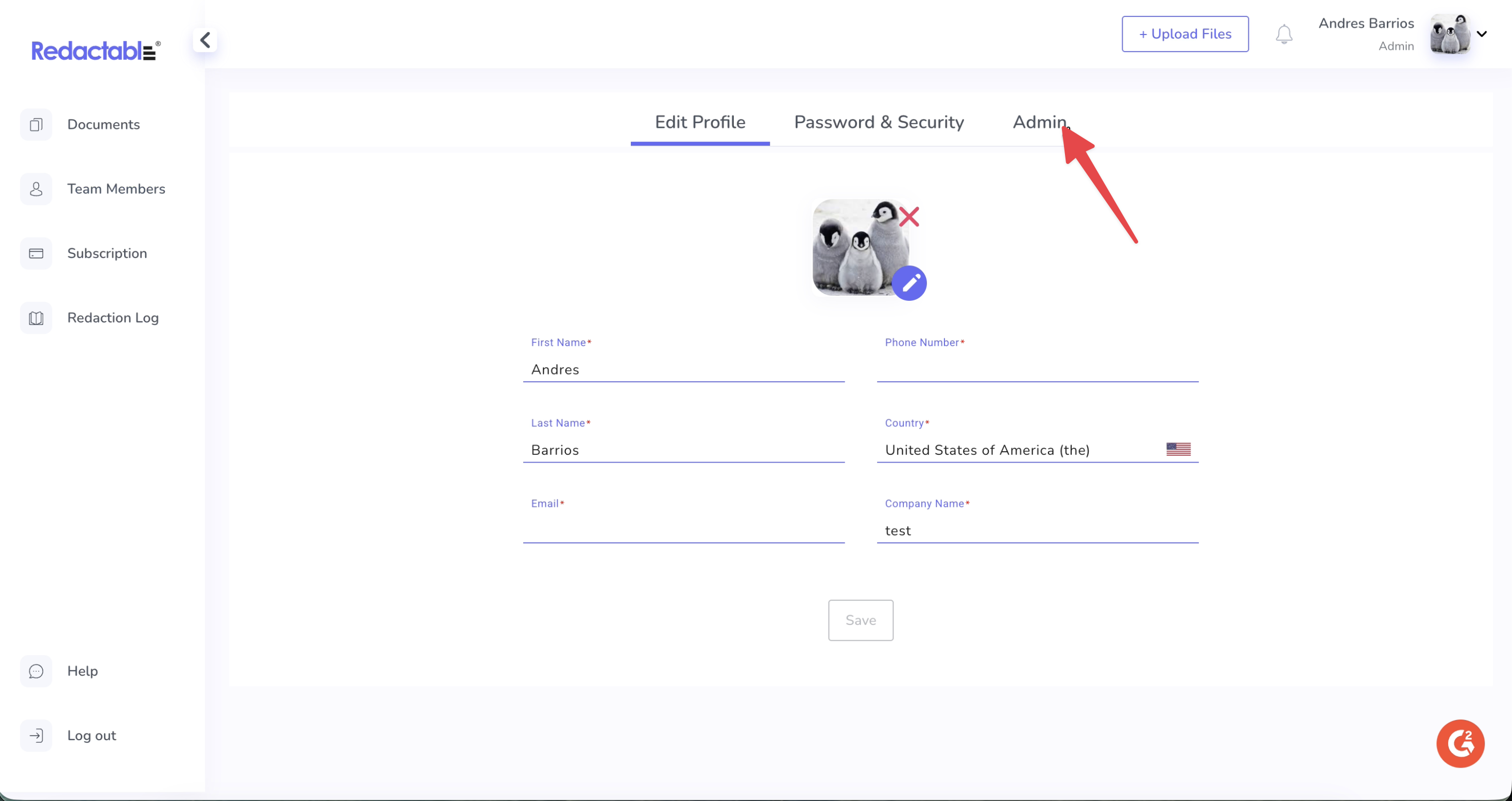
2. Navigate to the Admin tab.
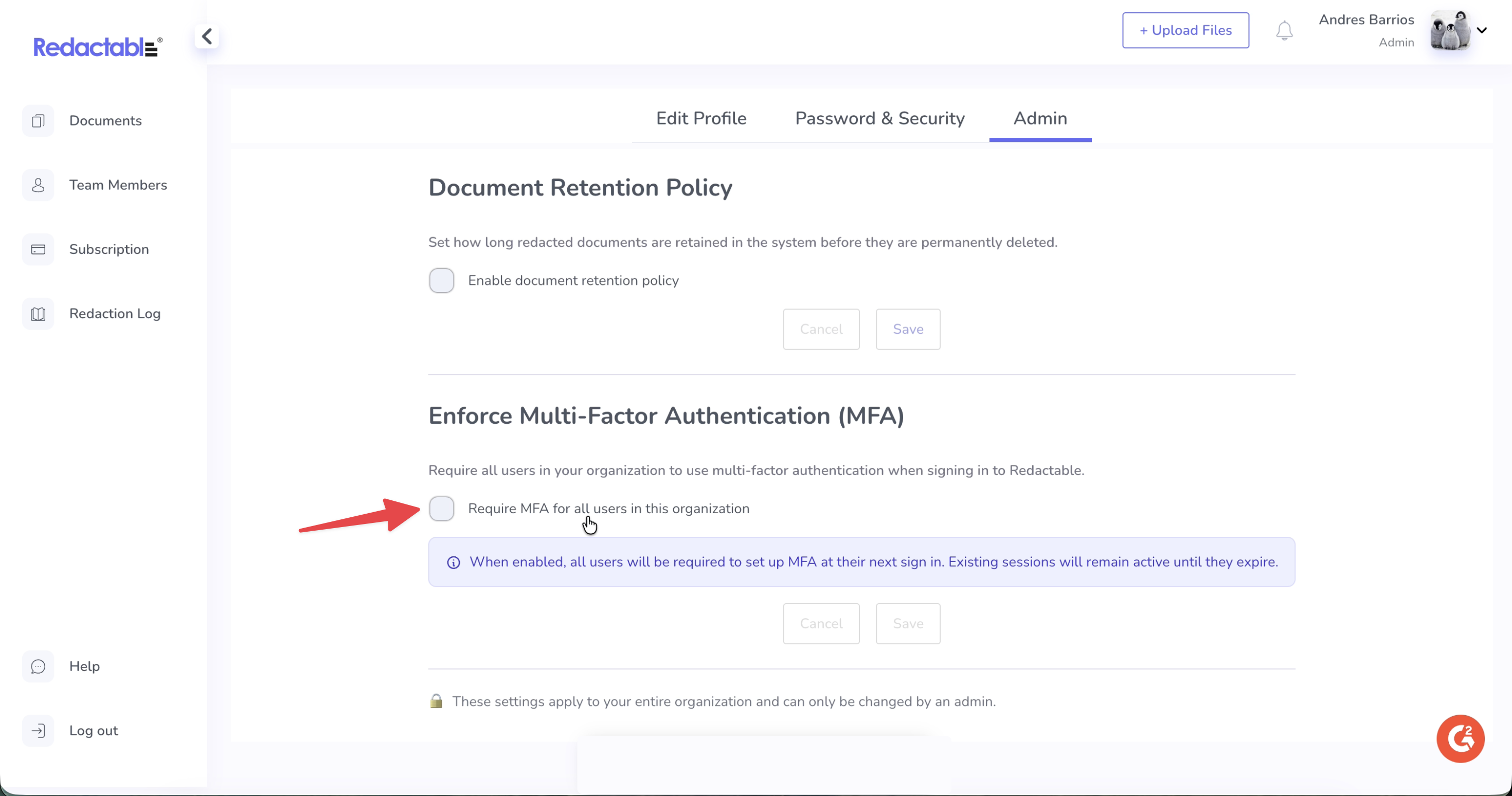
3. Find the Enforce Multi-Factor Authentication (MFA) section.
4. Turn on Require MFA for all users in this organization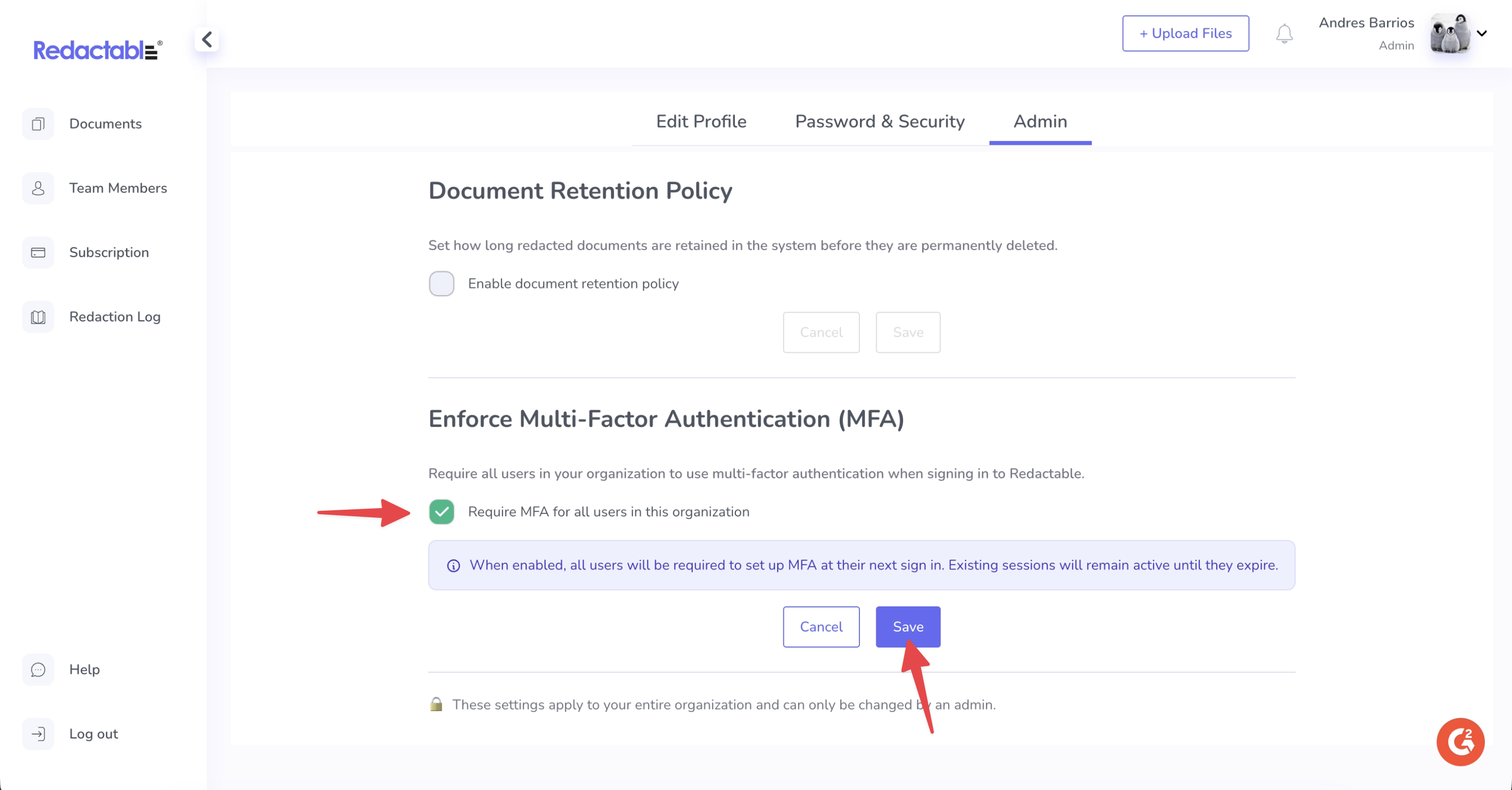
What to expect after enabling
- Users without MFA configured will be prompted to set it up the next time they sign in.
- Users who already have MFA configured won't be affected or interrupted.
- Existing active sessions remain active until they expire, enforcement applies starting with each user's next sign-in, not immediately.
Once organization-wide enforcement is on, standard users can't disable MFA from their own Password & Security settings, keeping the policy consistent across the organization.
If you have additional questions or need help, please contact us at support@redactable.com.
Tip: For detailed instructions on how to enable Two-Factor Authentication (2FA), click here.
Was this article helpful?
That’s Great!
Thank you for your feedback
Sorry! We couldn't be helpful
Thank you for your feedback
Feedback sent
We appreciate your effort and will try to fix the article