SharePoint Integration
Downloading documents from SharePoint, uploading them into Redactable, and then uploading them back again to redact them, adds extra steps and increases the chance of overwriting files or losing track of versions.
The SharePoint Integration allows you to import documents directly from SharePoint into Redactable, apply redactions, and have the redacted copy automatically synced back to SharePoint as a new version. The original file remains unchanged.
This removes the need for manual file handling, keeps each redacted document saved as a separate version, and lets you track changes directly in SharePoint.
Why It Matters
The SharePoint Integration changes how redactions are handled across teams and documents:
- Centralized document handling: Import, redact, and sync files back without moving them outside your SharePoint environment
- Team collaboration: Teams can access original and redacted versions directly in SharePoint for review and follow-up
- Time savings: Removes repeated download and upload steps when working with multiple documents
- Bulk processing: Select and import multiple files at once and apply redactions in the same workflow
- Permission inheritance: Redacted versions follow the same access permissions as the original SharePoint file
- Audit visibility: Each redacted version is tracked in SharePoint, making it easier to review document history and changes
Using the SharePoint Integration
Connecting to SharePoint
1. From your Redactable dashboard, navigate to the Upload Files section.
2. Select SharePoint as your file source from the available file storage options.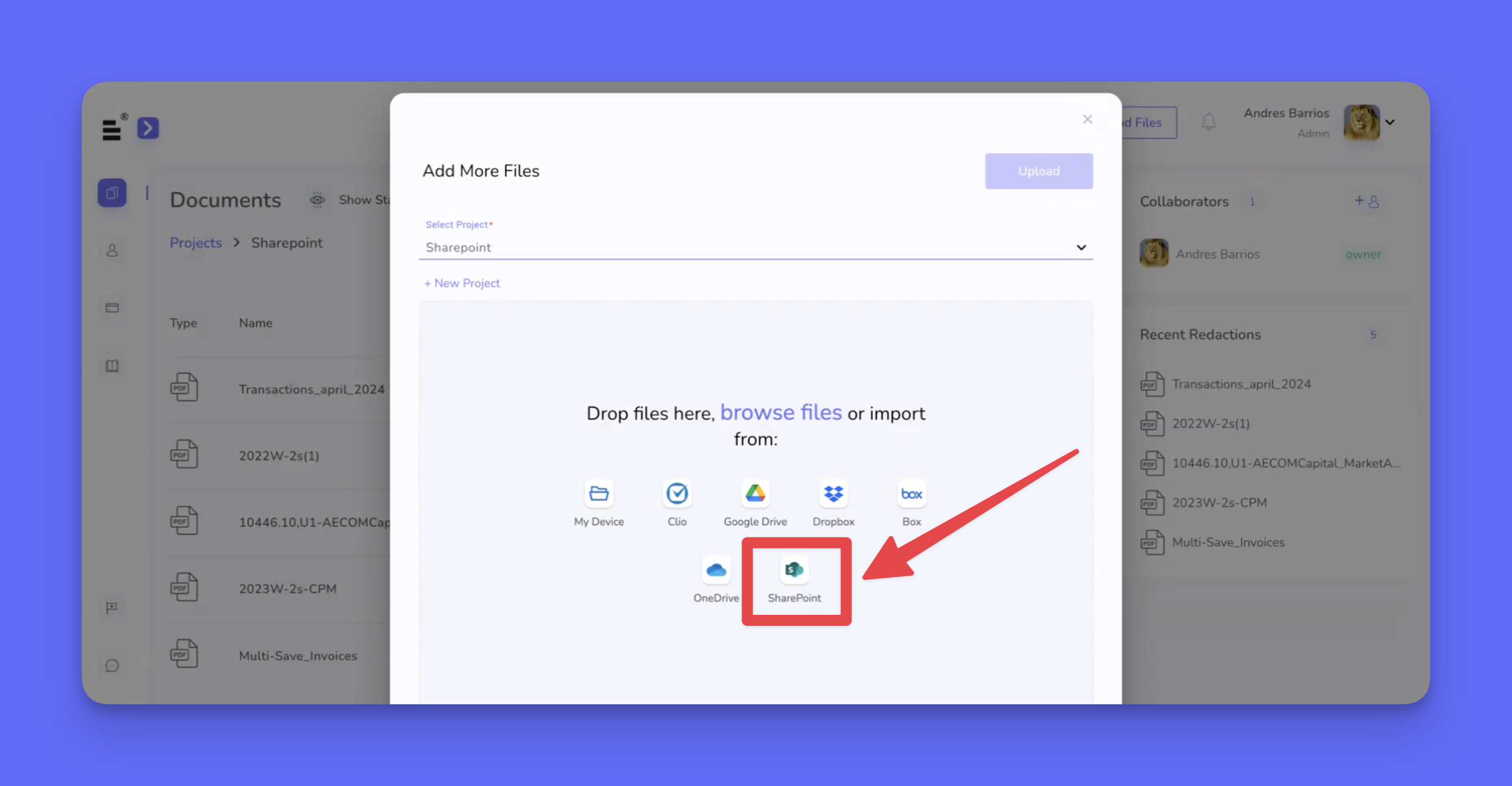
3. Click on “Connect to SharePoint” to connect your SharePoint account to Redactable.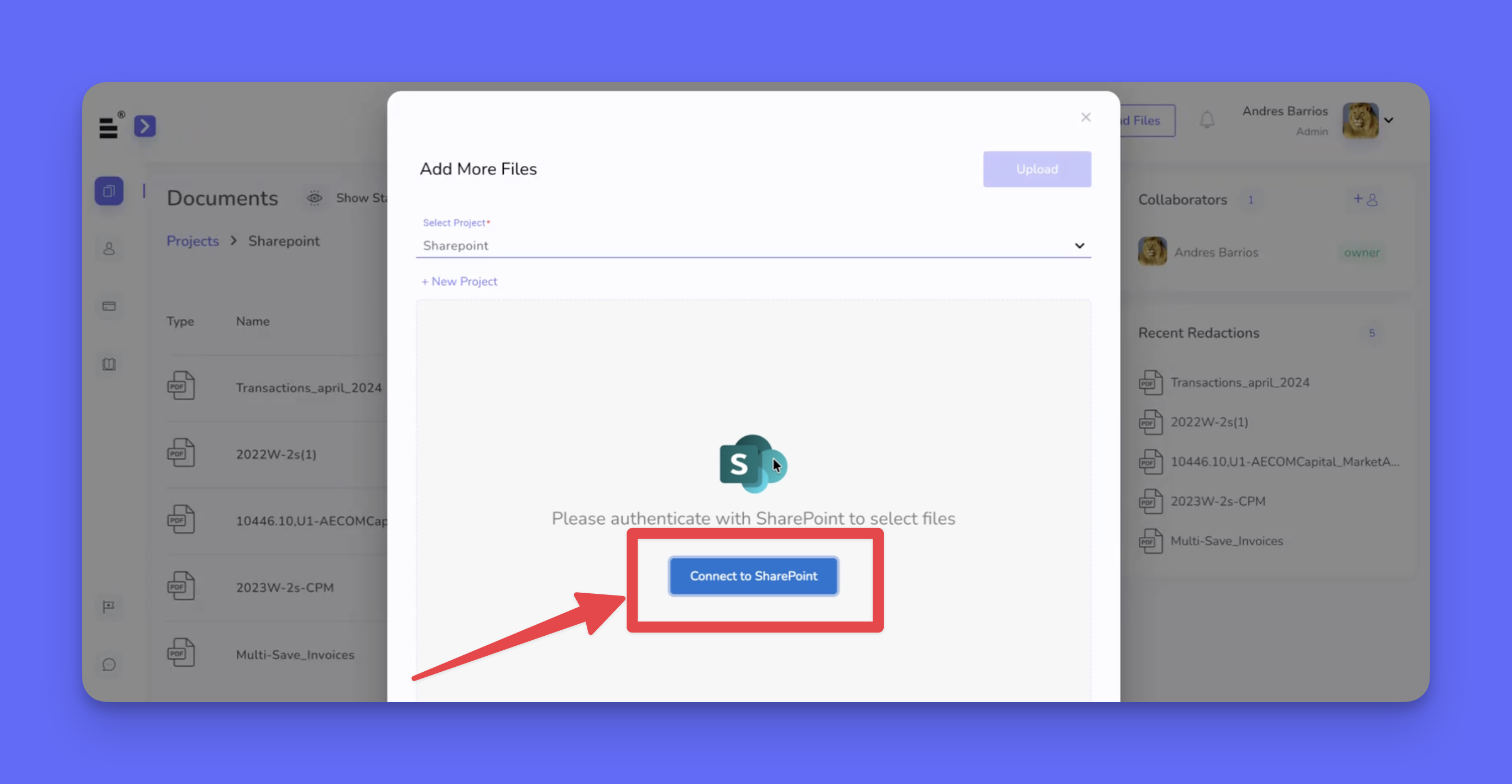
4. Choose a SharePoint account to access the SharePoint document library. Once connected, you will be able to browse your SharePoint folders directly within Redactable.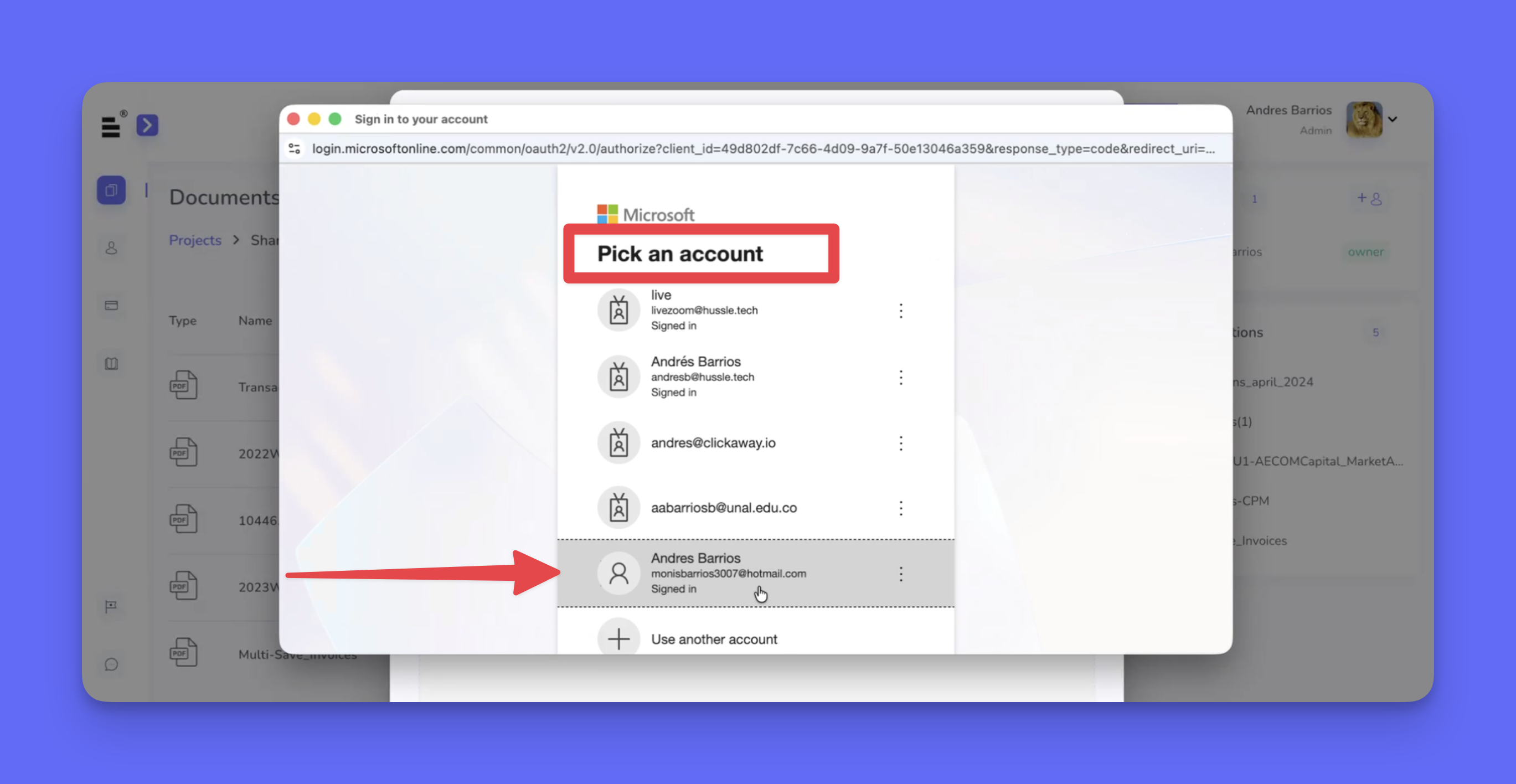
Importing documents
5. Open the SharePoint folder that contains the documents you want to redact.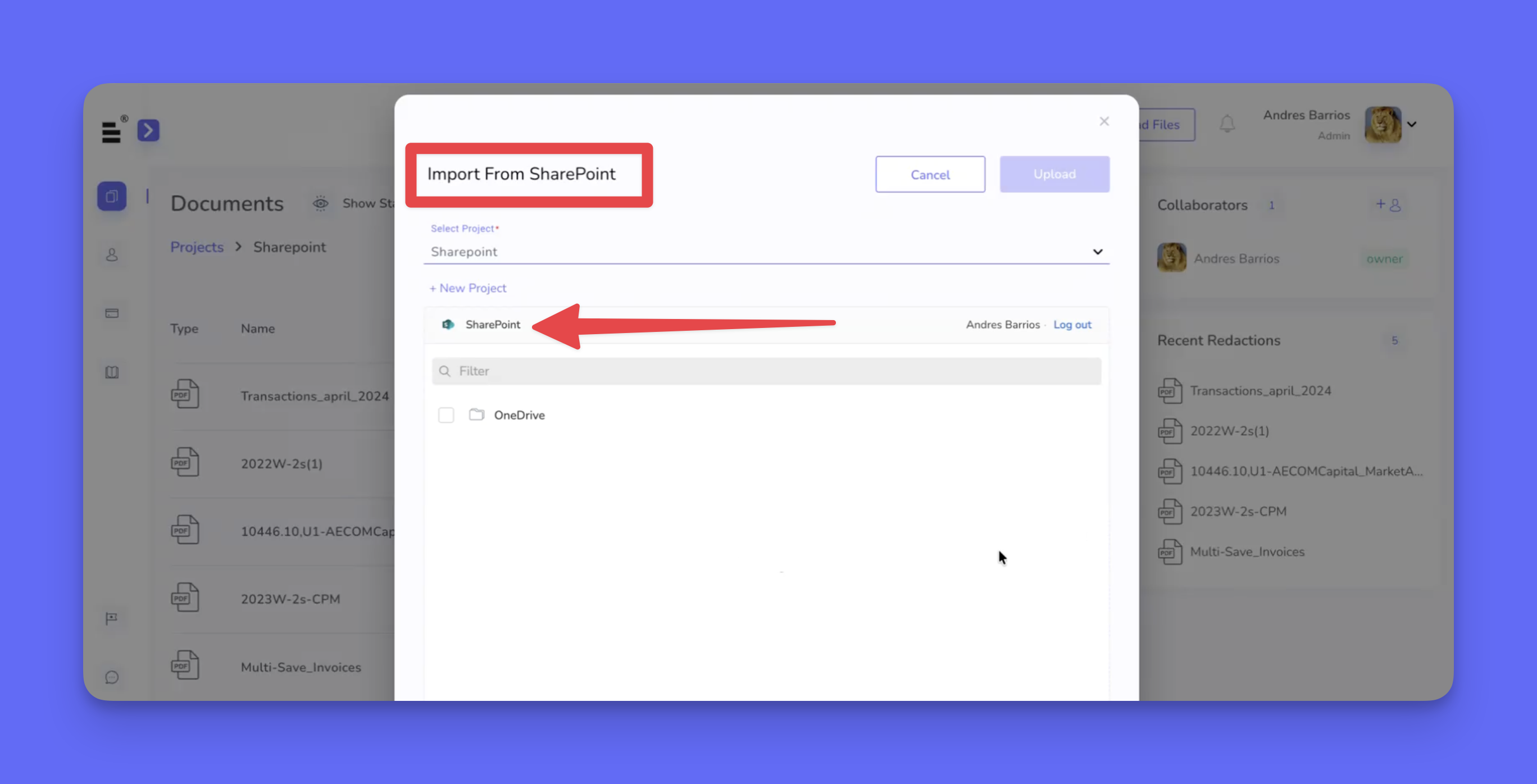
6. Select one or more files to upload into Redactable.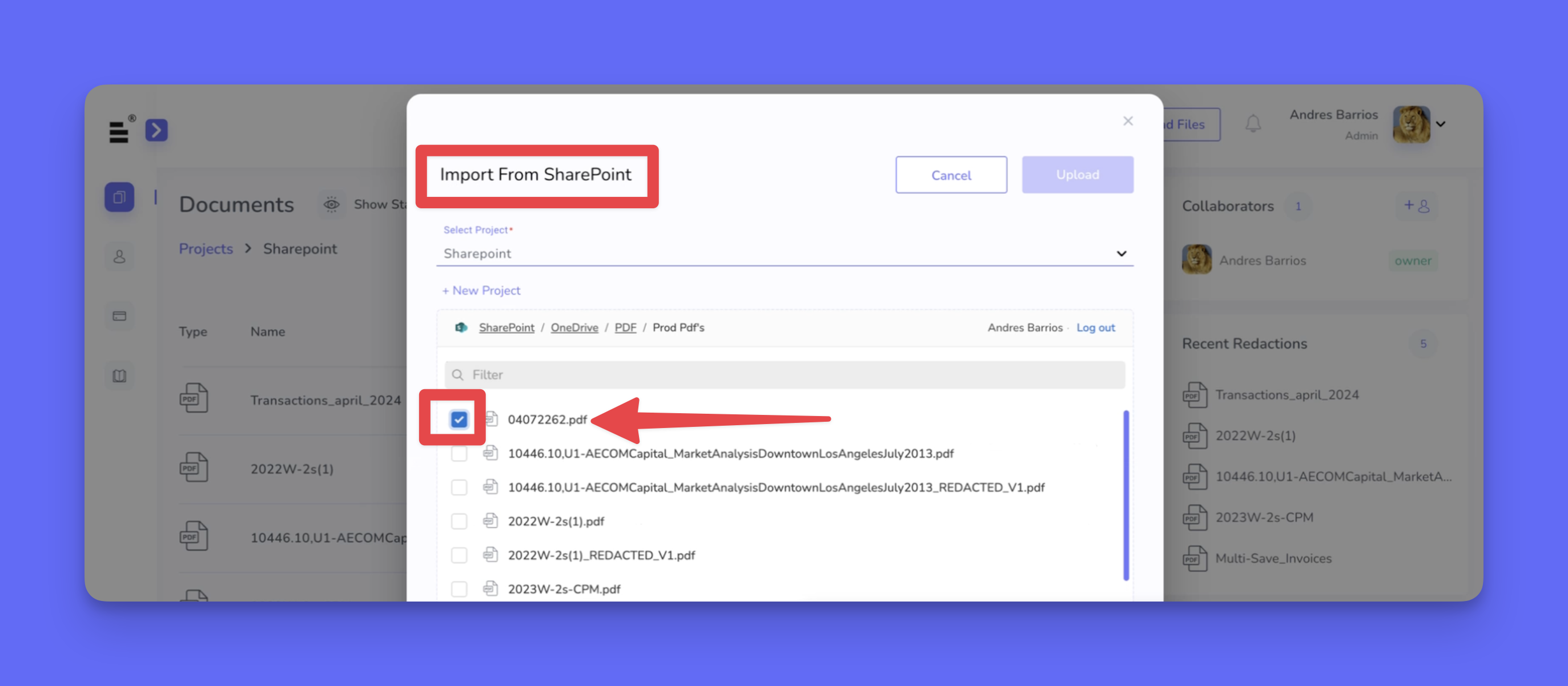
7. Wait for the system to complete OCR and document optimization before proceeding.
Redacting documents
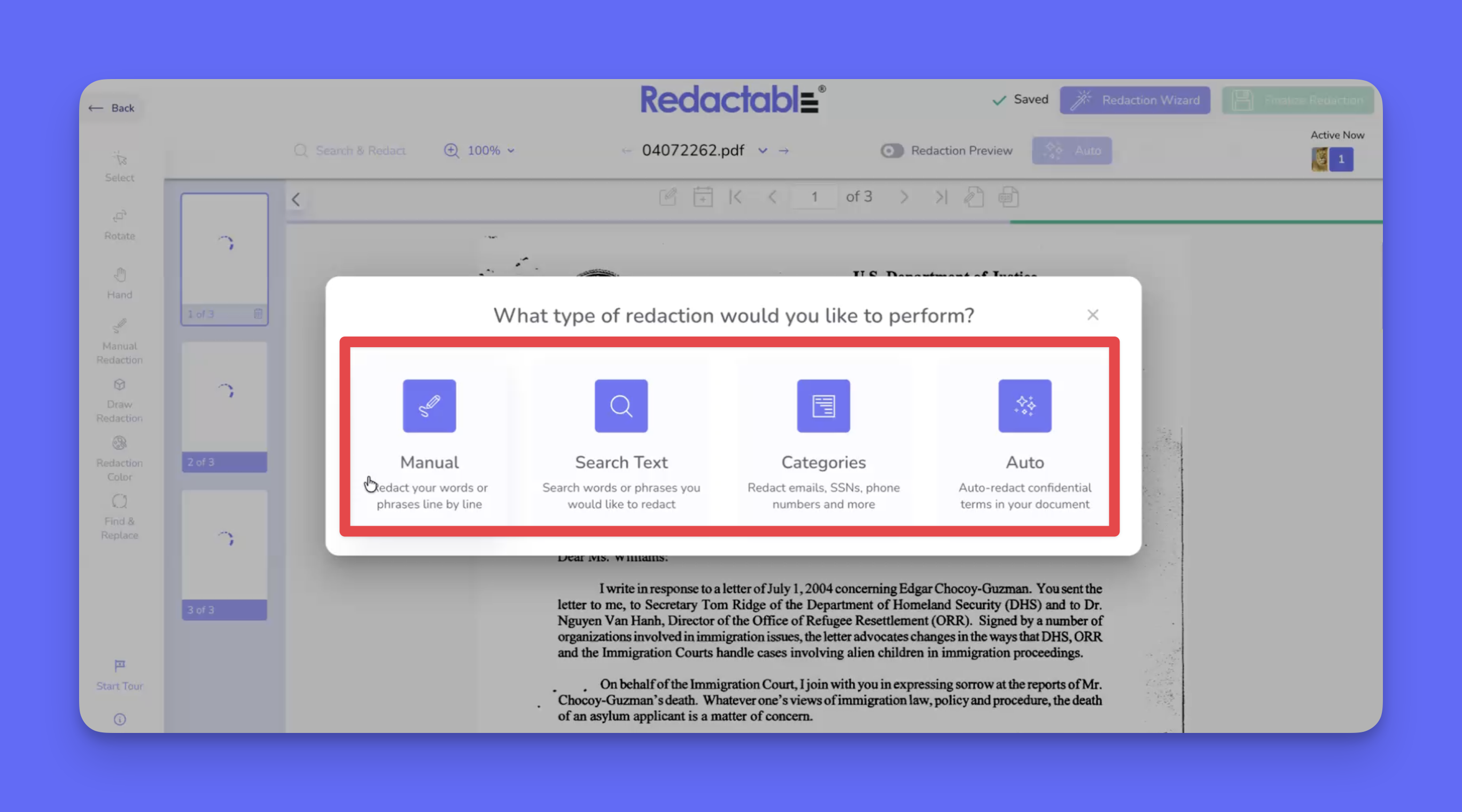
8. Open the uploaded document in Redactable and from the Redaction Wizard choose one of the redaction options(Search & Redact, Categories, Auto Redaction) to identify and apply redactions.
9. Review the highlighted suggestions and select items to redact.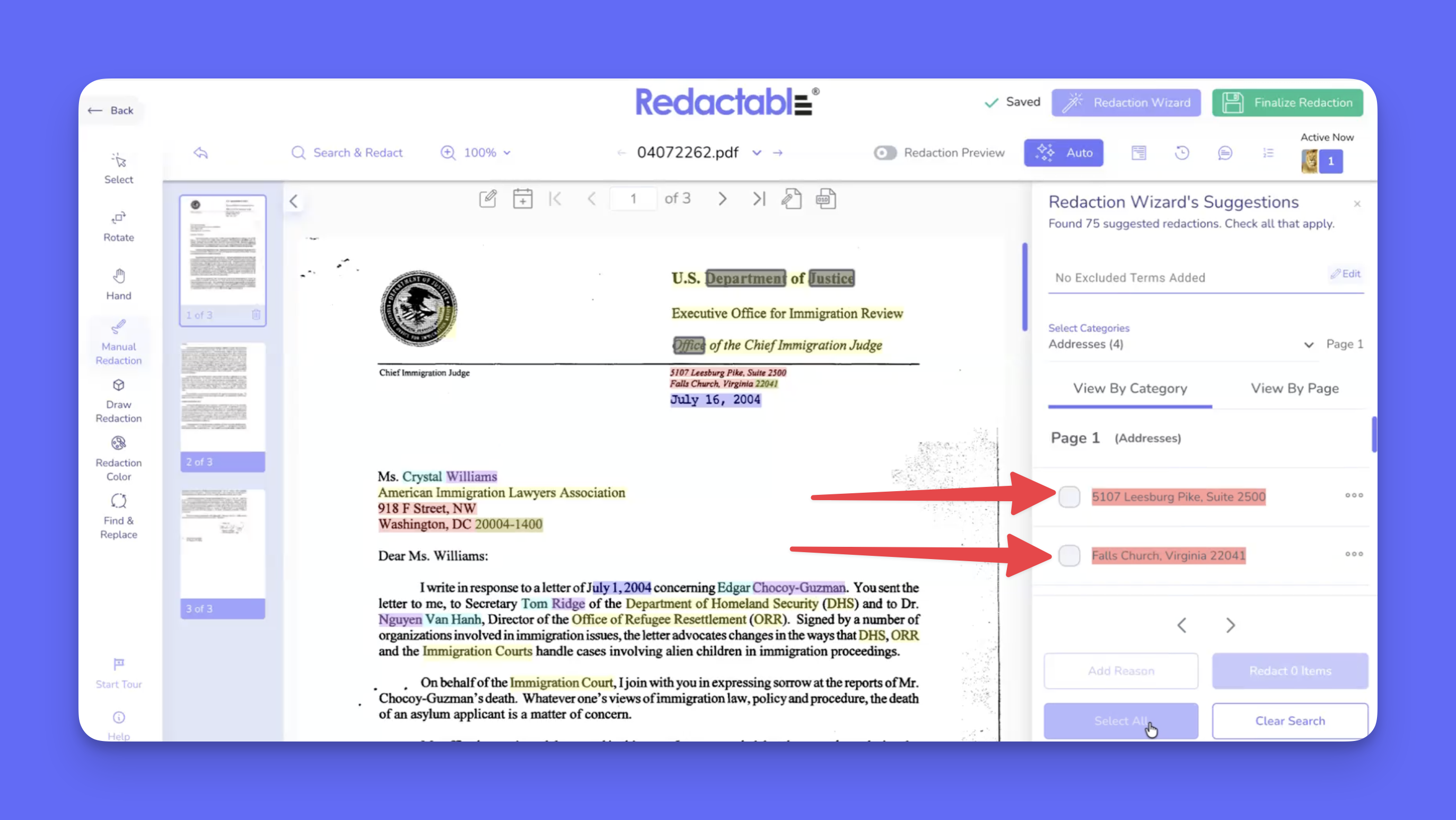
10. To redact a specific item, click on a highlighted suggestion.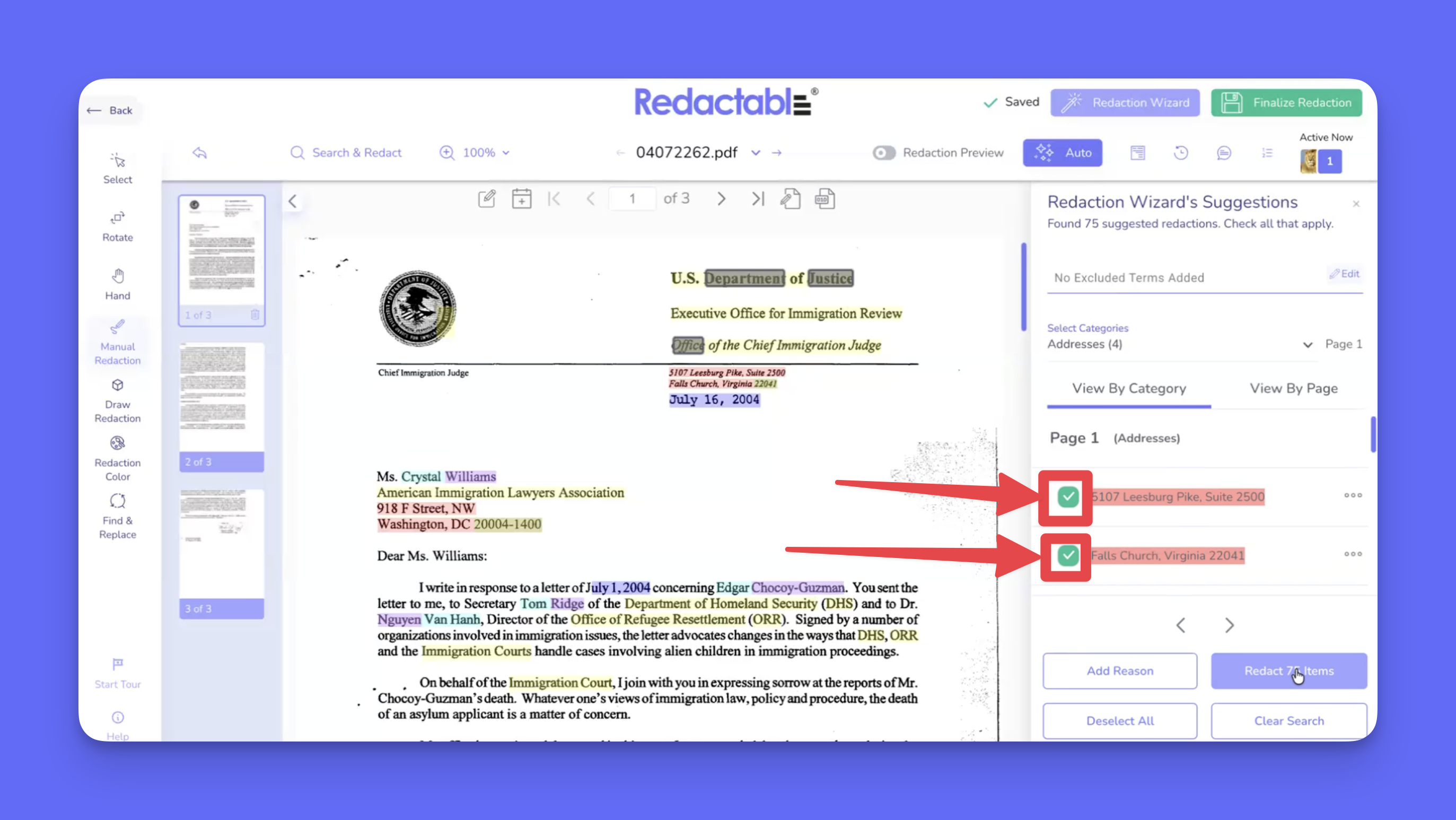
11. Click on “Redact Items” to apply all selected redactions at once.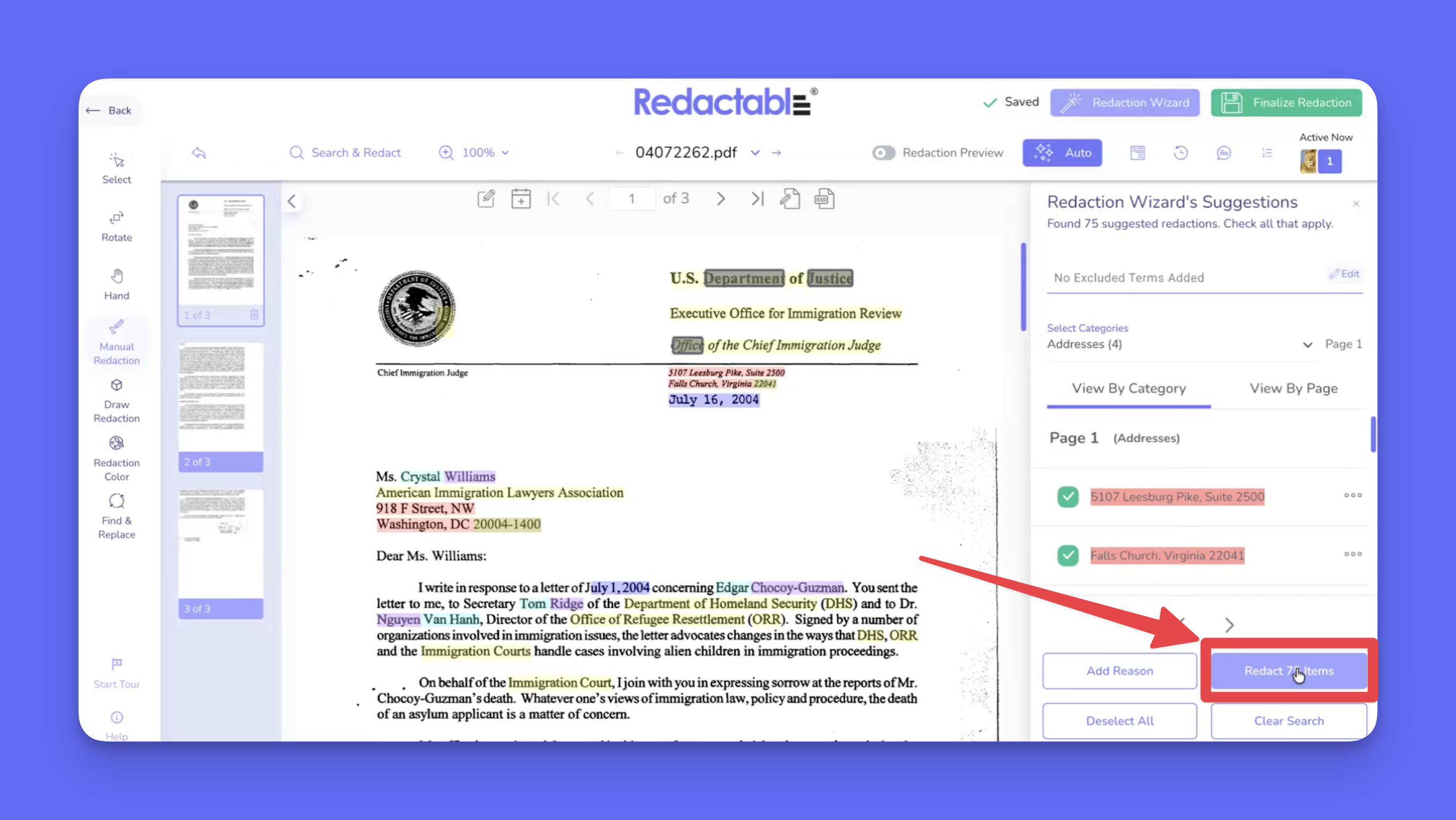
12. To complete the redaction process, review all applied redactions, and click on “Finalize Redaction” to permanently apply changes.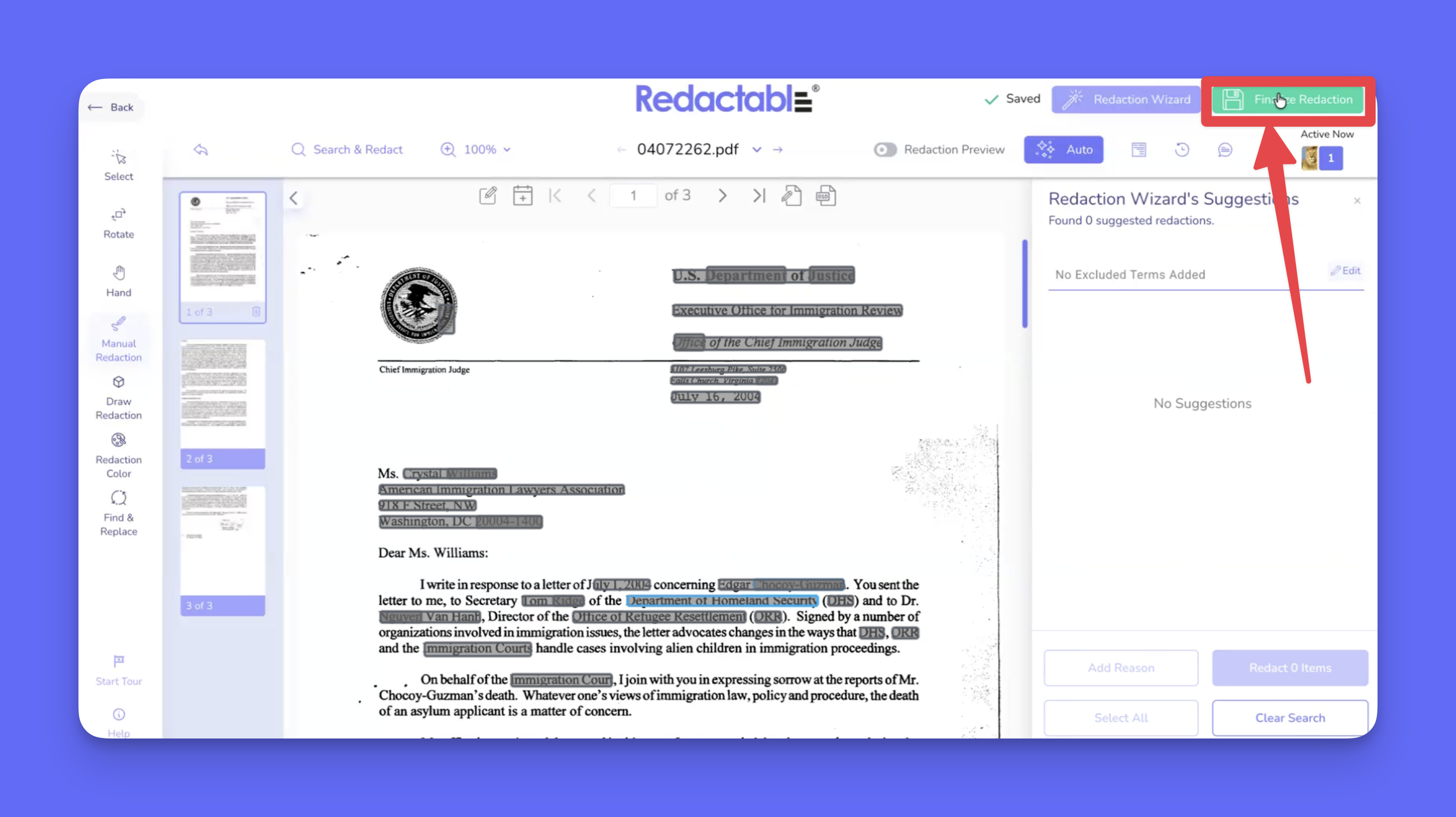
Exporting back to SharePoint
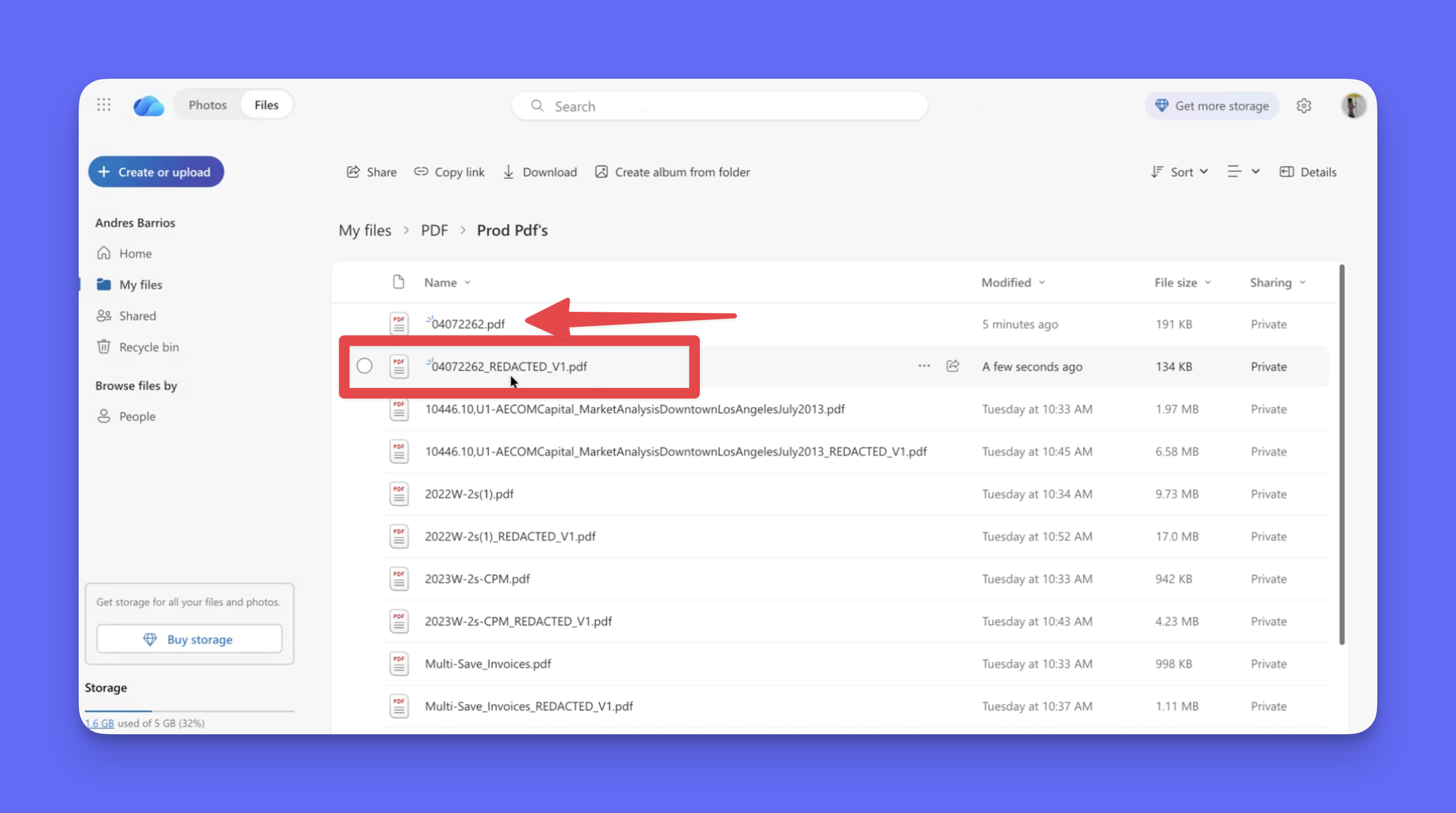
13. Redactable will automatically export the redacted file back to the original SharePoint folder.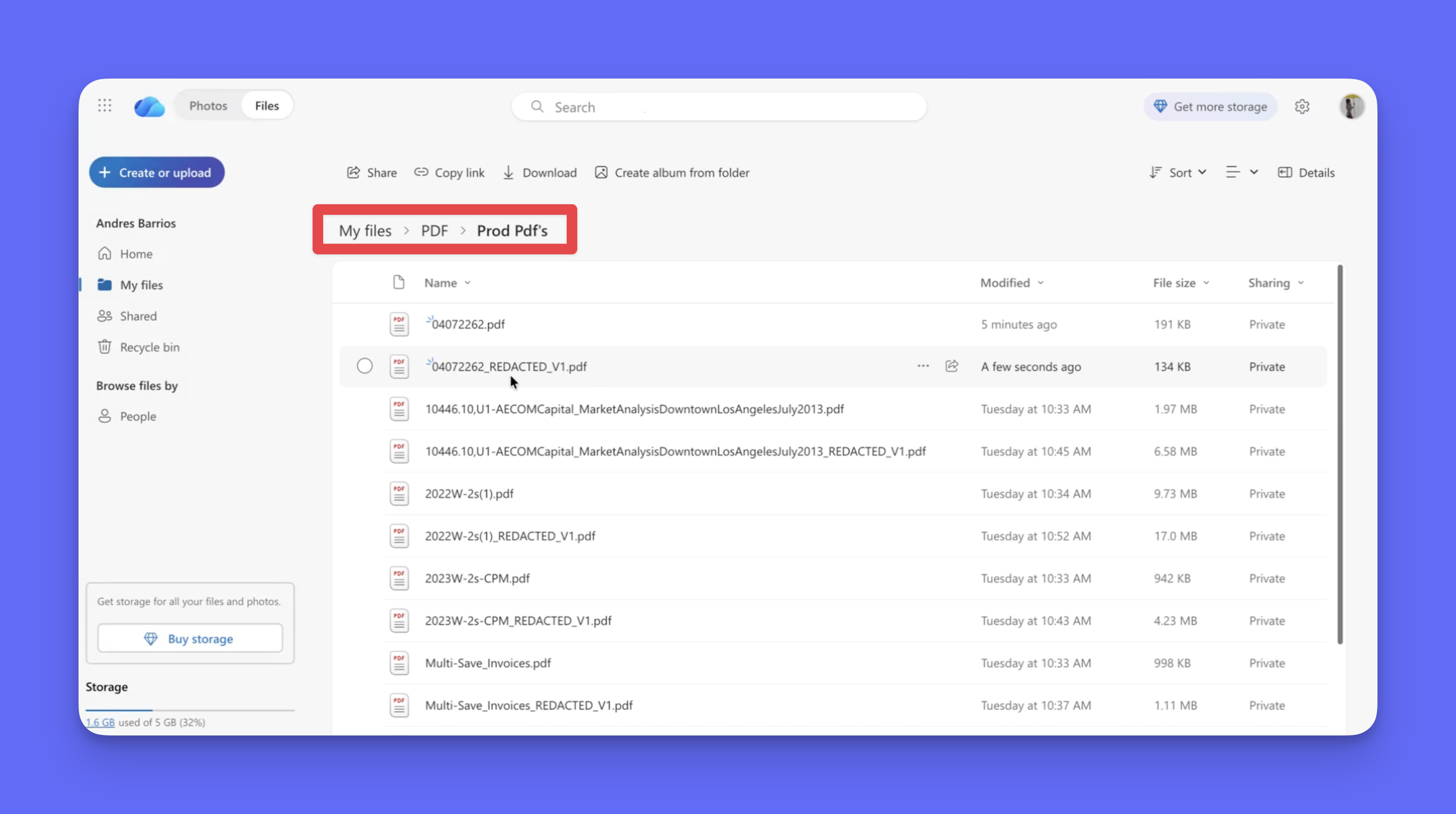
14. Exporting back to SharePoint
If you have additional questions or need help, please contact us at support@redactable.com.
Tip: For detailed instructions on how to use the Redaction Wizard, click here.
Was this article helpful?
That’s Great!
Thank you for your feedback
Sorry! We couldn't be helpful
Thank you for your feedback
Feedback sent
We appreciate your effort and will try to fix the article