Uploading a CSV file of terms within the Search & Redact and Search Exclusion workflows in Redactable allows you to populate your active search or exclusion list with up to 5,000 keywords or phrases at once. Rather than manually entering each term, you can upload a properly formatted CSV file to configure your criteria efficiently and support consistent, scalable document review.
This reduces manual effort, particularly for workflows involving recurring redaction projects, regulatory term lists, litigation keyword sets, or government exemption terms.
Why it matters
Uploading a CSV file strengthens large-scale redaction workflows by:
- Enabling bulk processing: Add up to 5,000 terms in a single upload.
- Improving time efficiency: Reduce setup effort before review begins.
- Supporting high-volume workflows: Manage extensive regulatory, legal, or compliance lists.
- Eliminating manual entry: Replace repetitive typing with a single upload.
- Removing workflow friction: Import terms directly within active tools.
Uploading a CSV Term List
1. To upload a CSV file of terms open your document in Redactable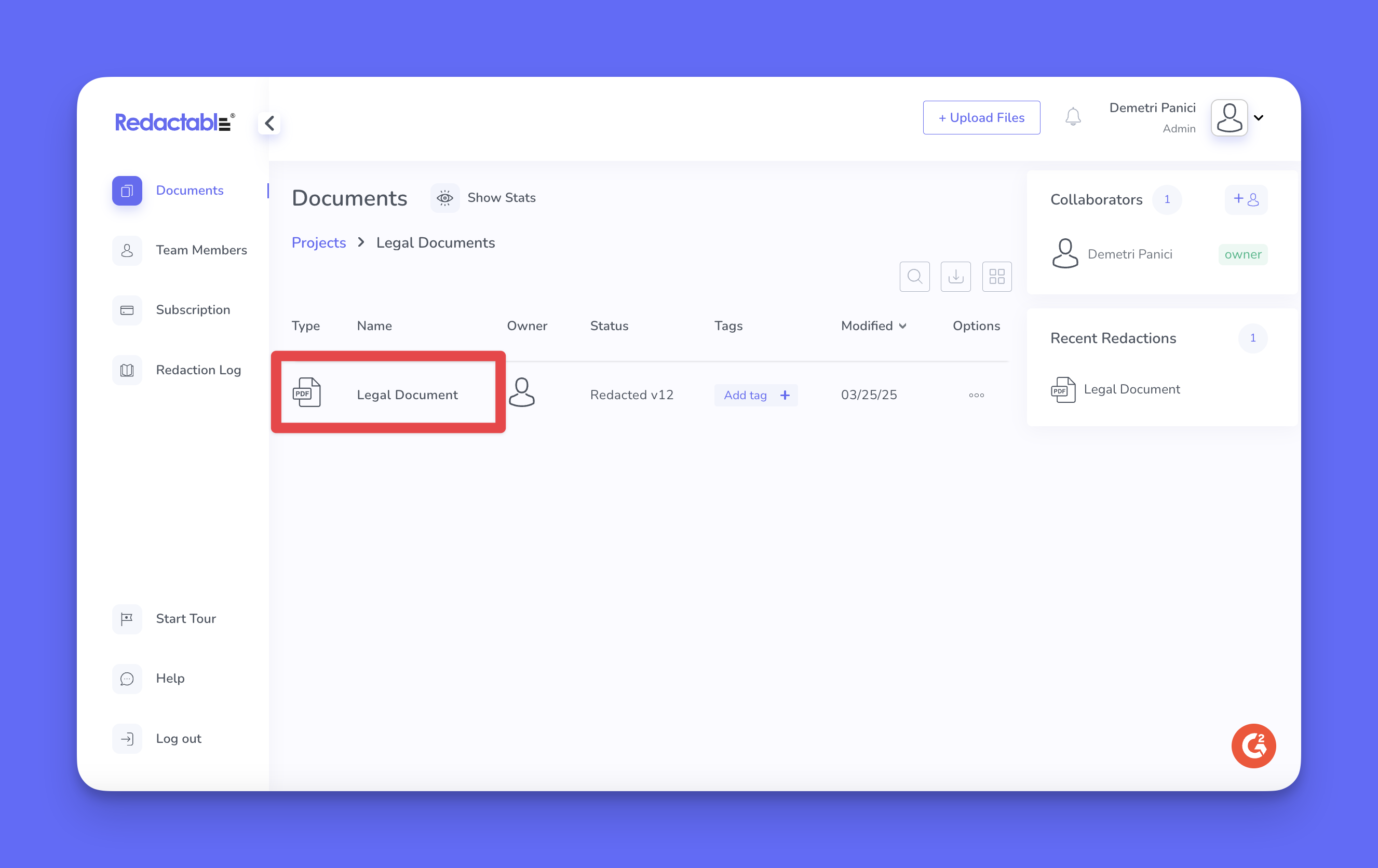
2. Select Search & Redact or Search Exclusion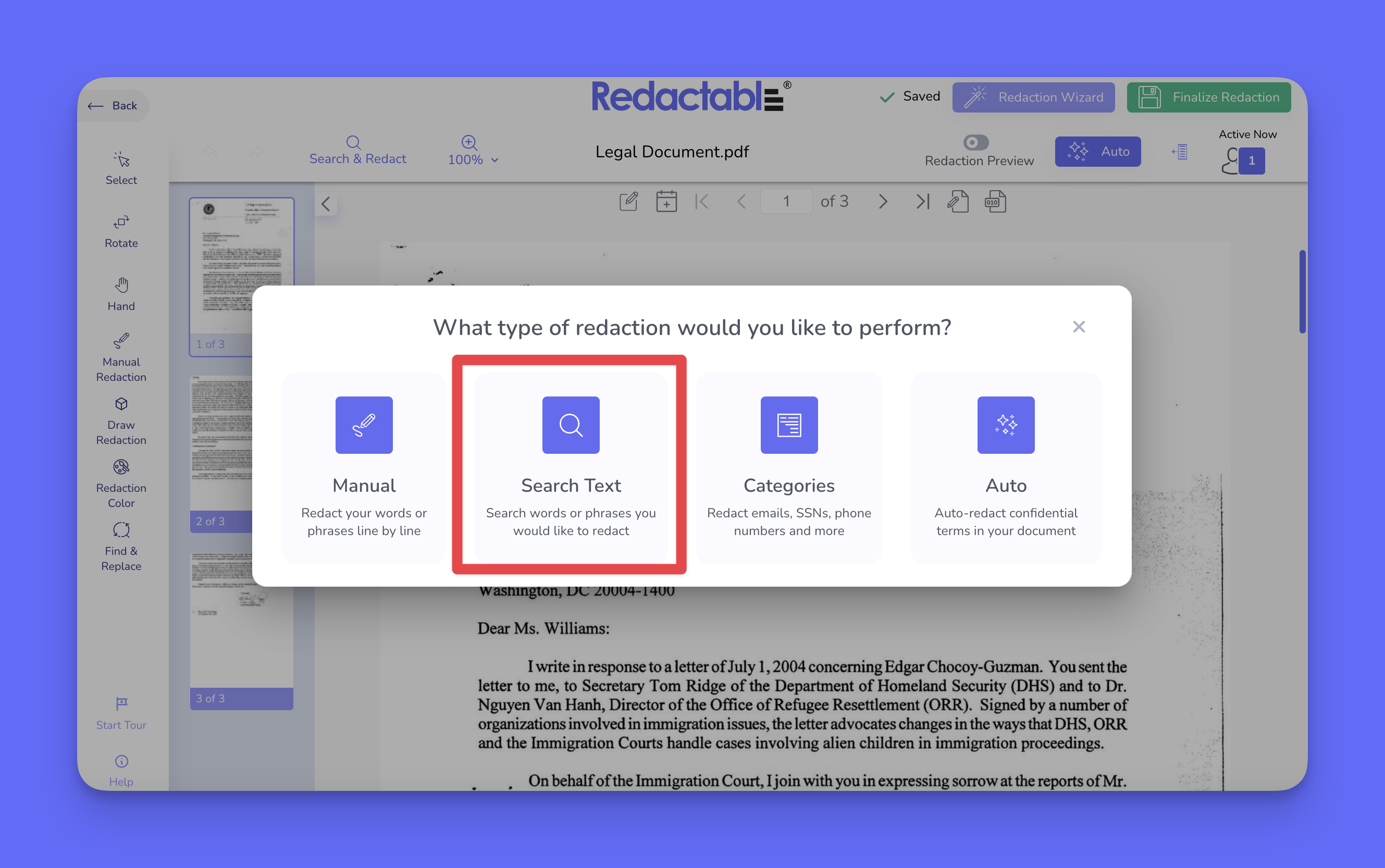
3. Find the upload option within the search terms area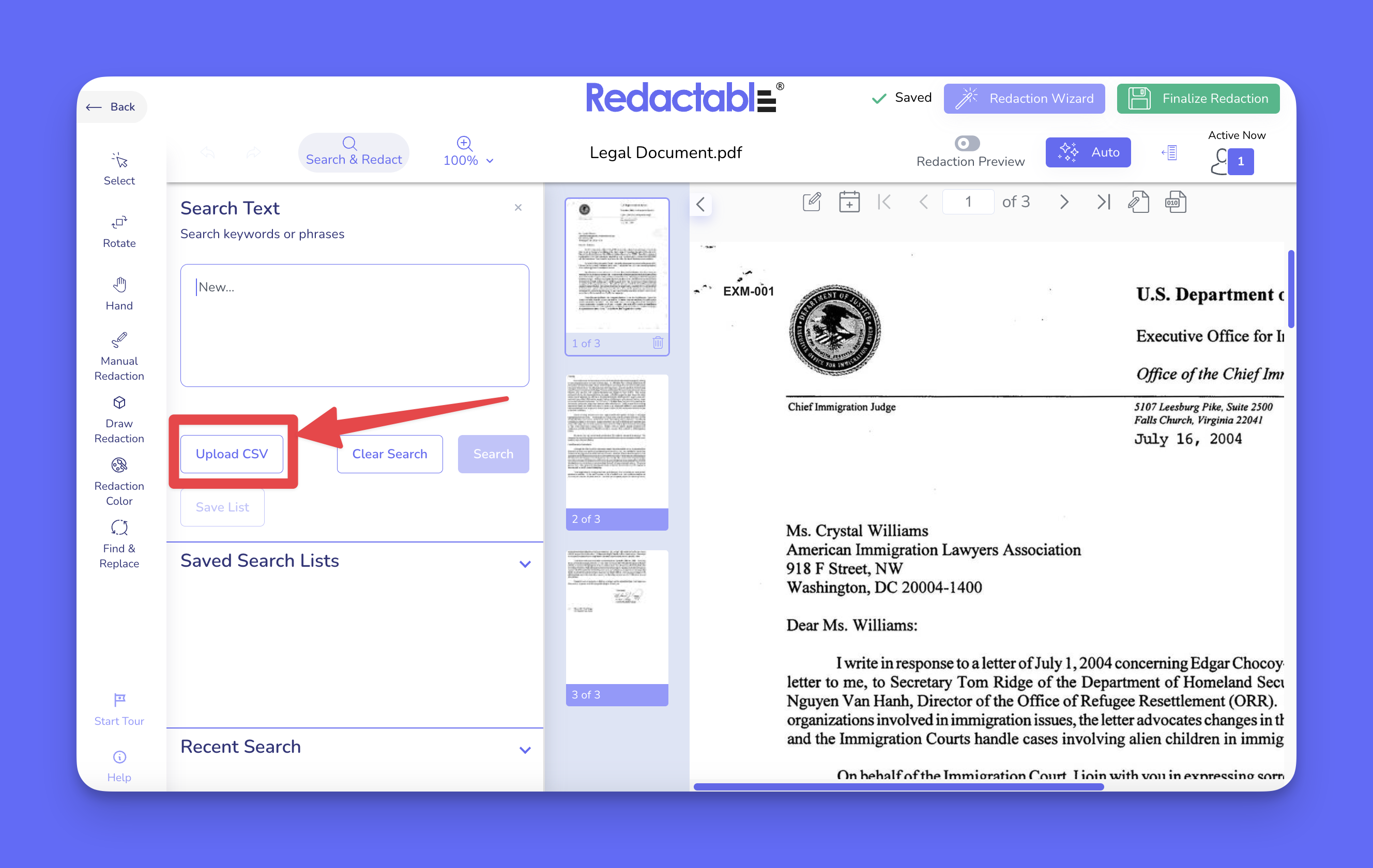
4. Select your CSV file (limit 5,000 terms). After uploading, the terms will be added to your active search list.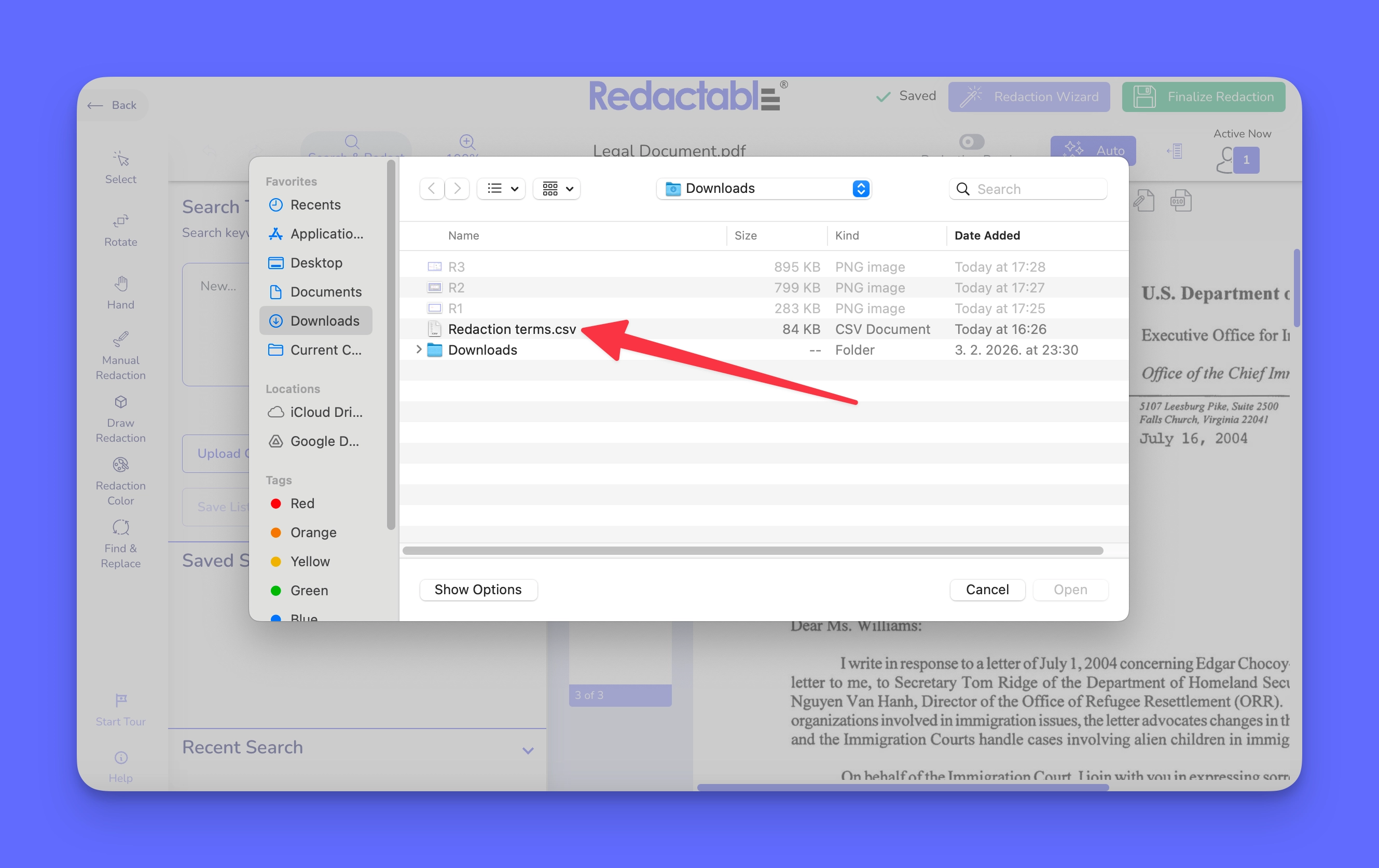
5. To save the list of terms click the Save List button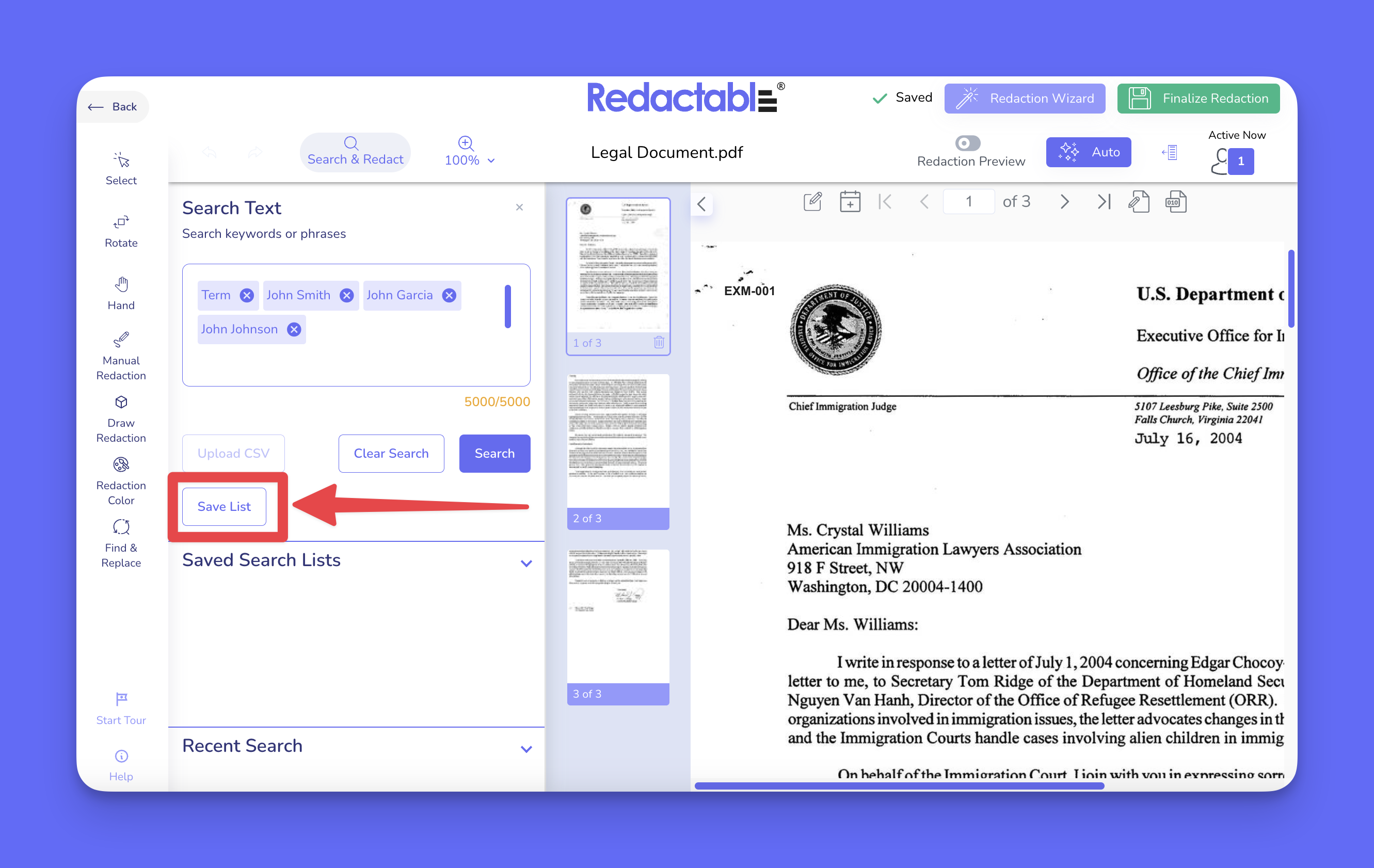
6. Name the list and click Save Search List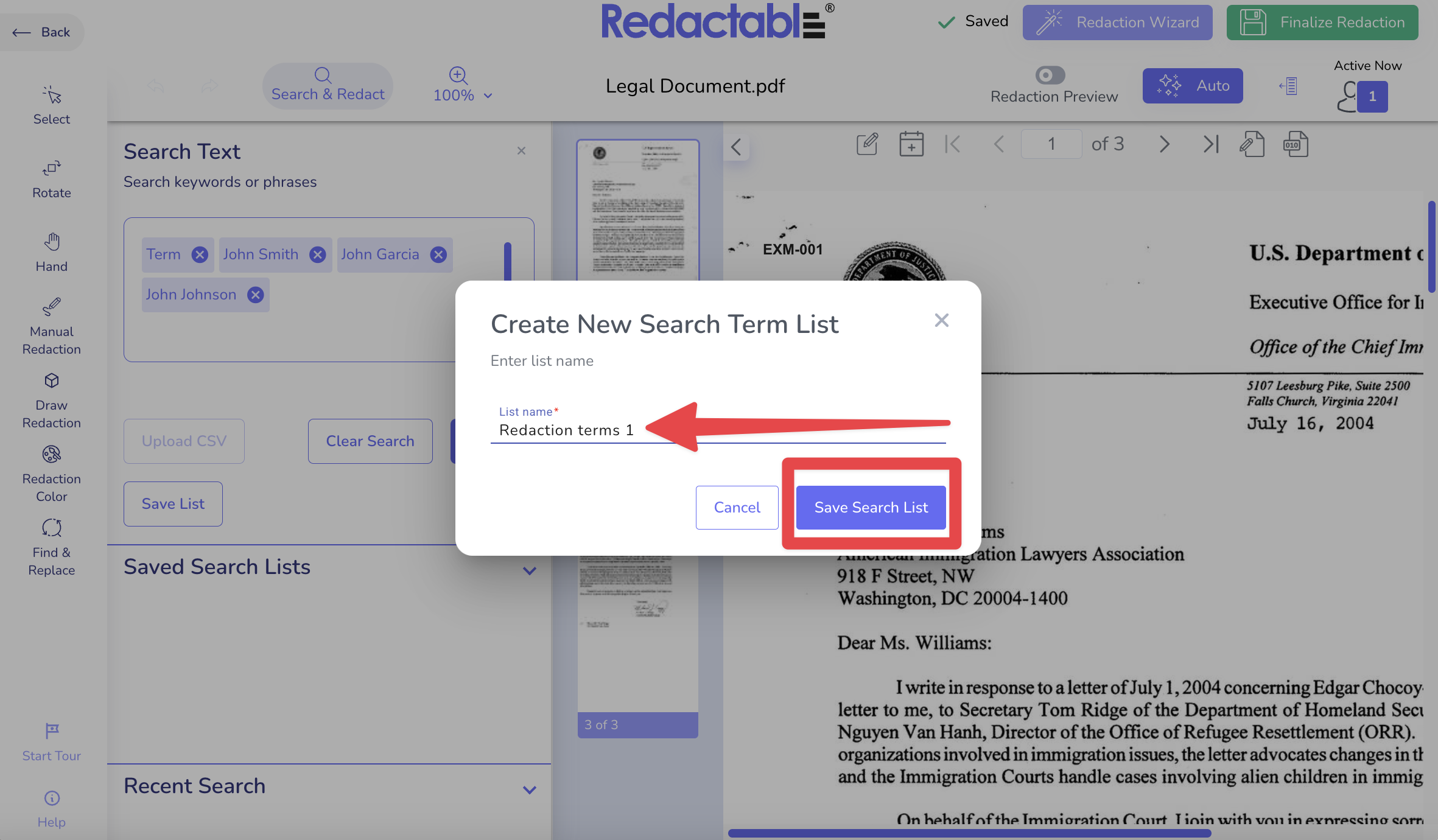
Your search or exclusion list is automatically populated with all uploaded terms.
7. To run the redaction using uploaded terms confirm the imported terms appear correctly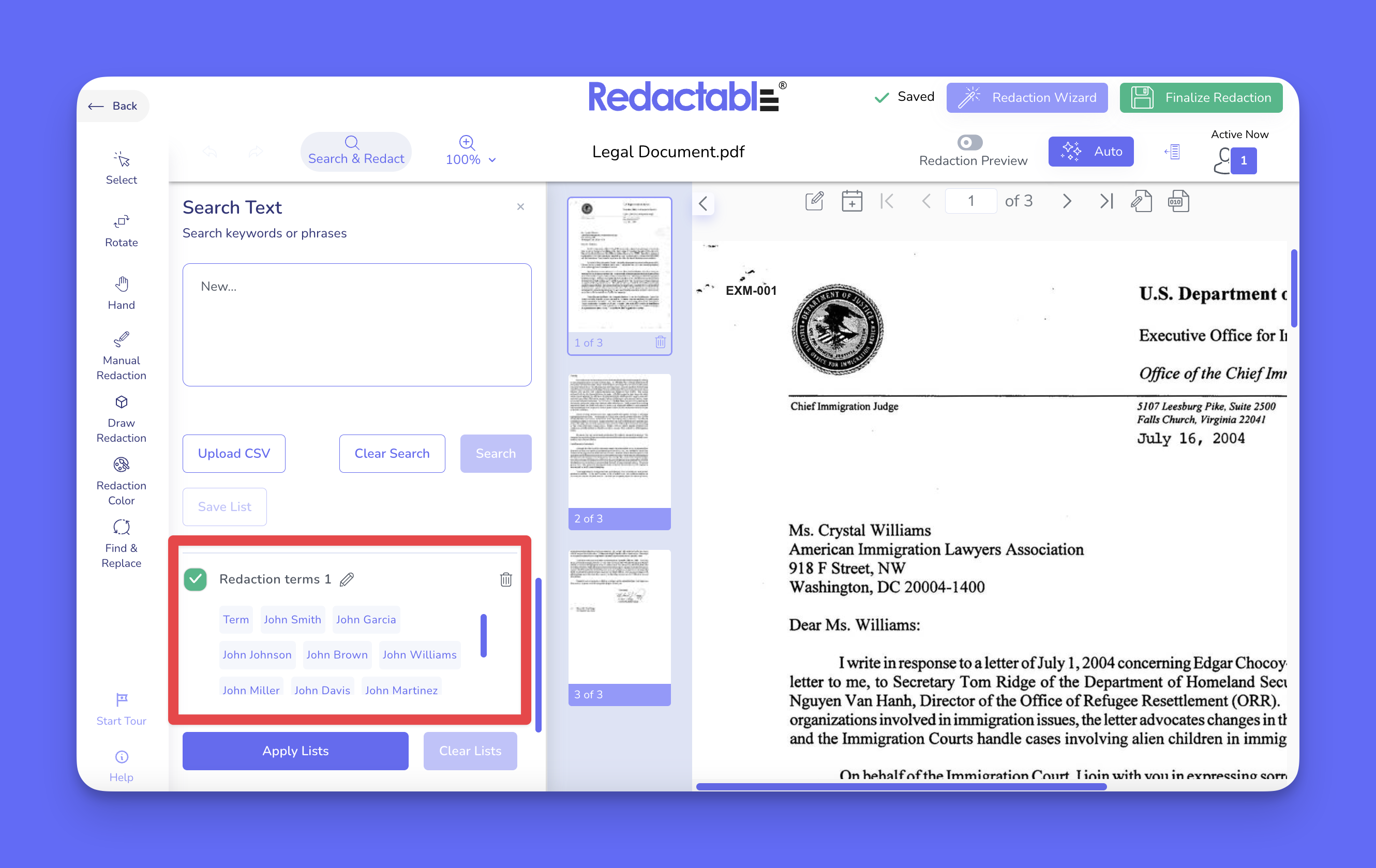
8. Modify or remove entries if required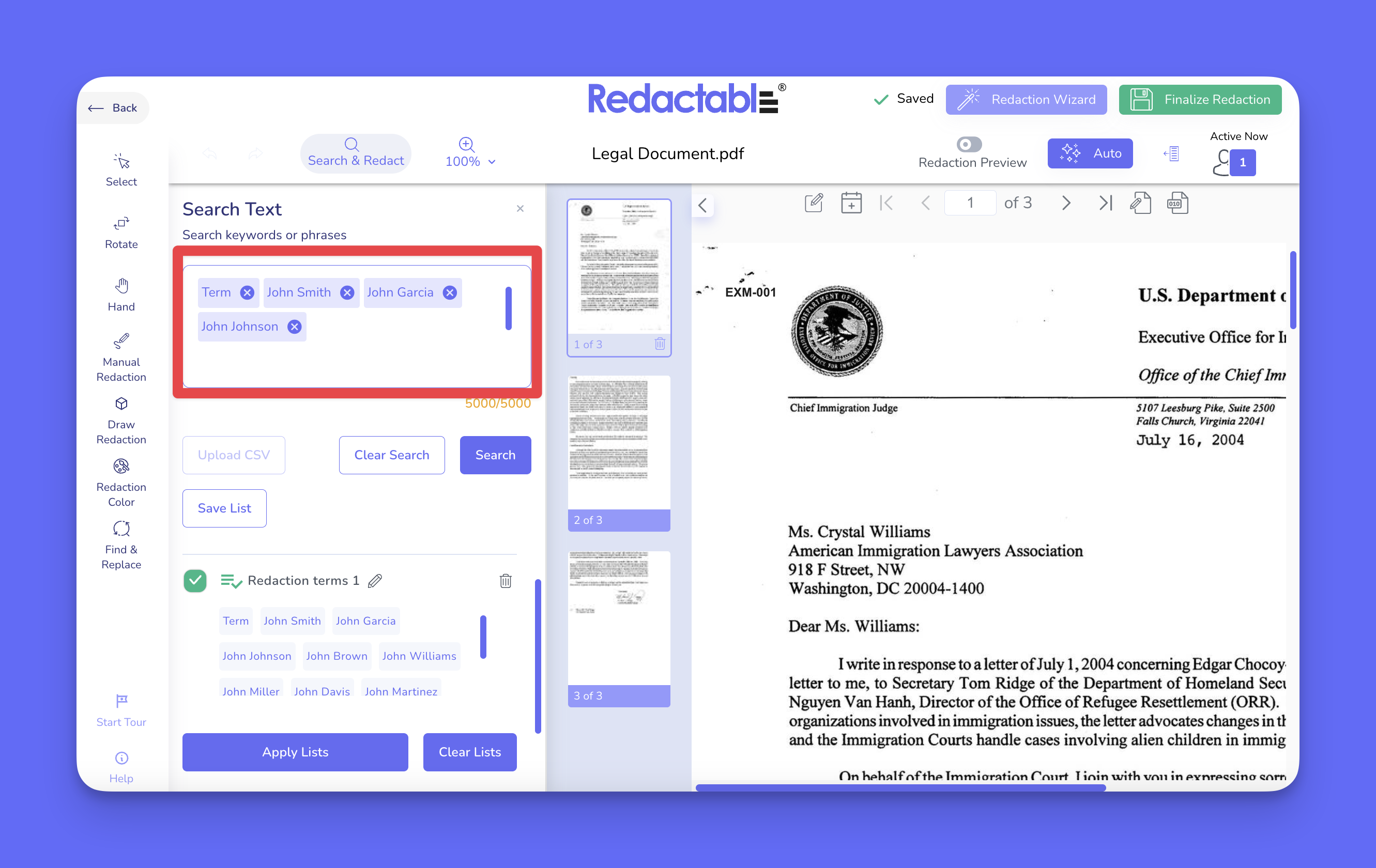
9. To run the detection of terms click on the Search button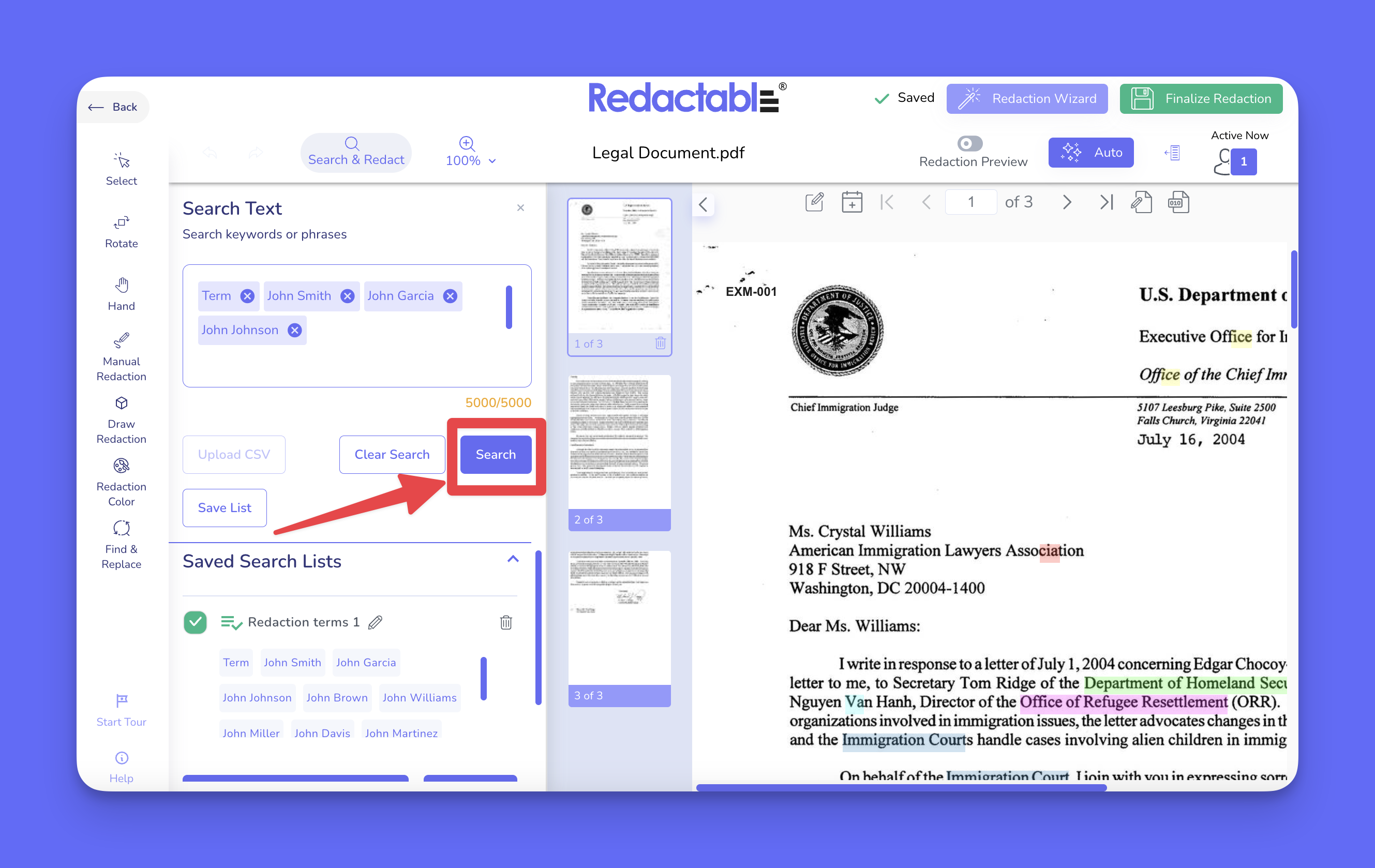
10. Click Apply All Redactions to apply matches of terms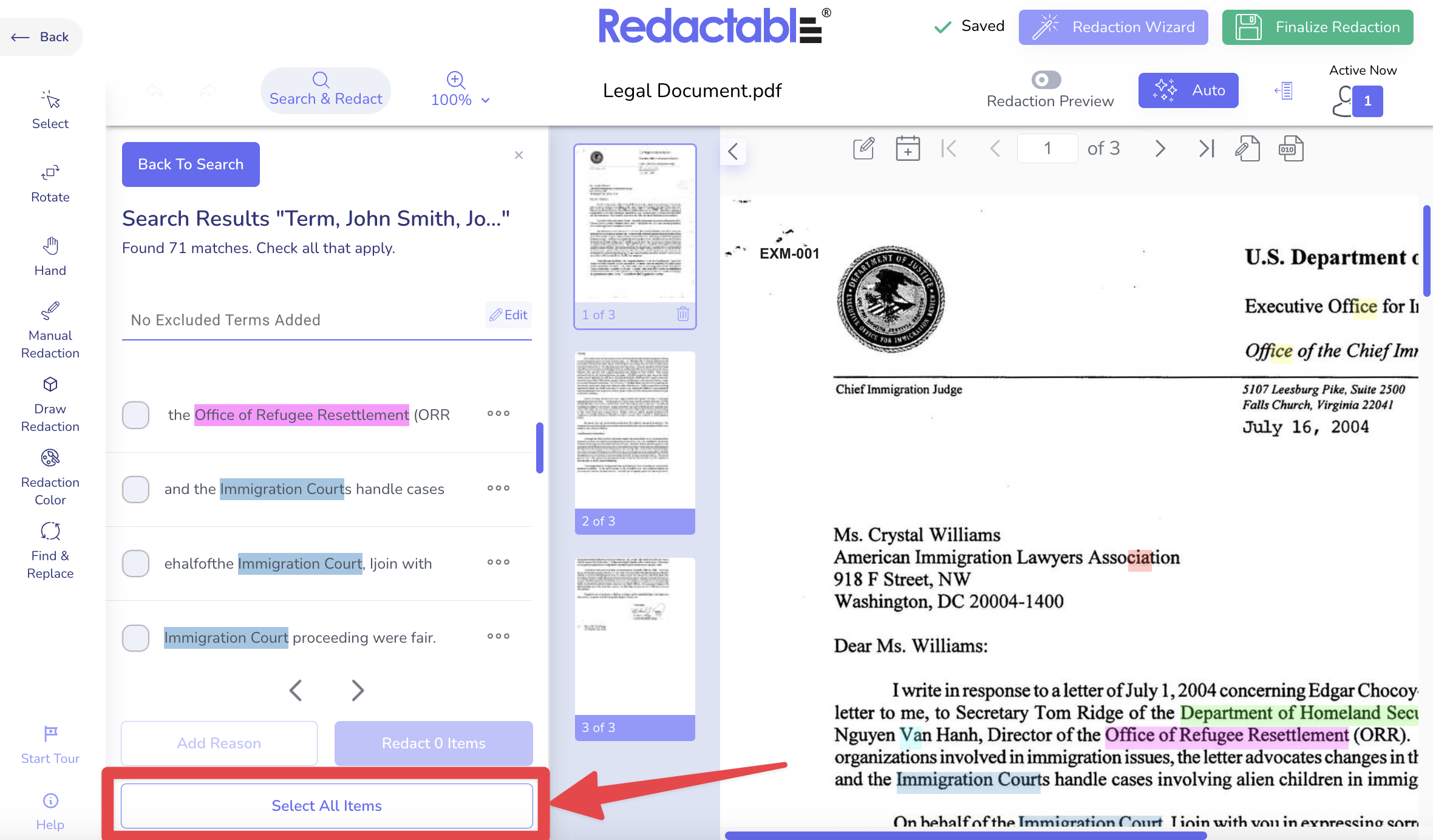
11. To finalize the redaction click on Redact Items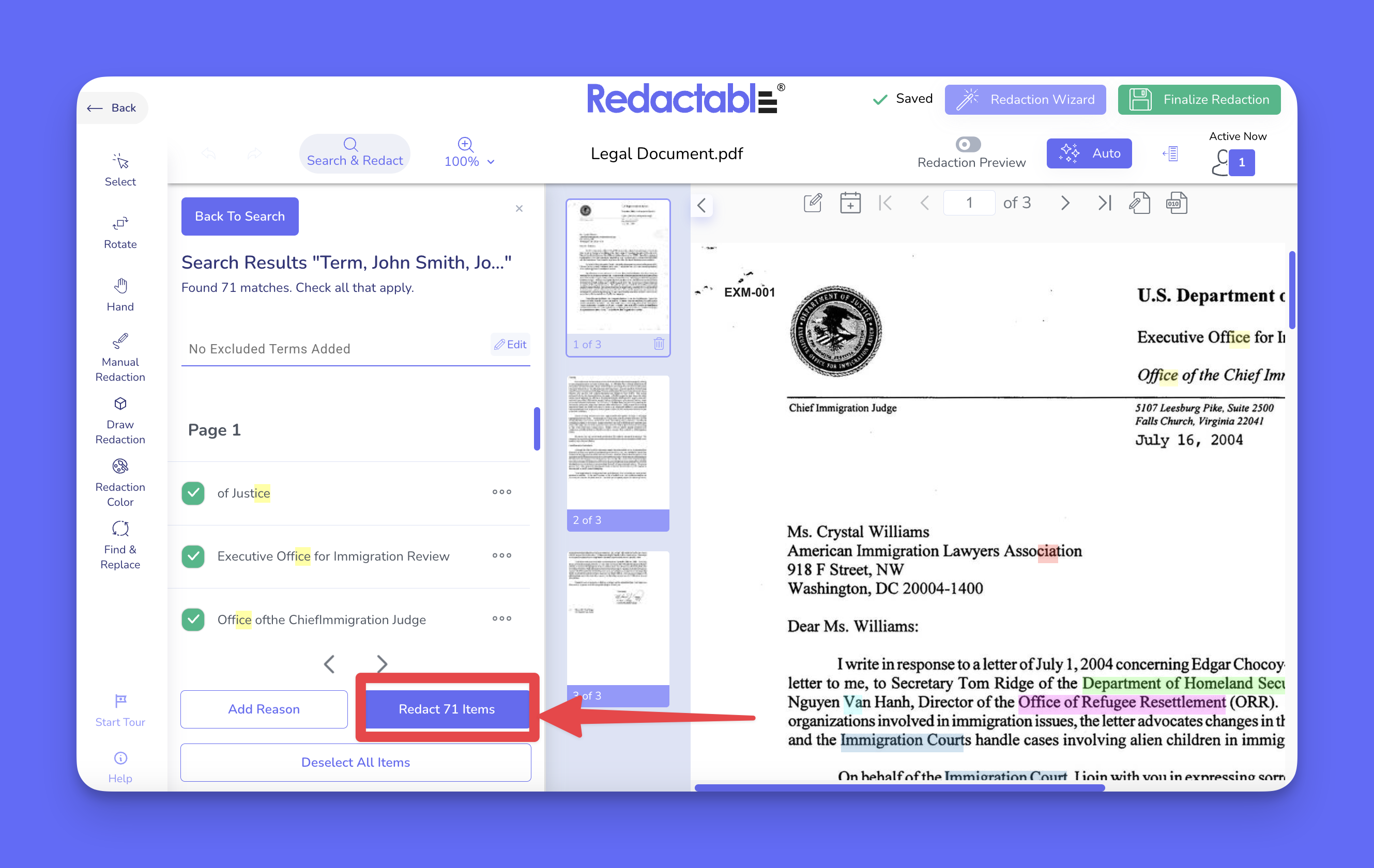
Was this article helpful?
That’s Great!
Thank you for your feedback
Sorry! We couldn't be helpful
Thank you for your feedback
Feedback sent
We appreciate your effort and will try to fix the article