The Document Retention Policy gives Admins and Billing Admins direct control over how long finalized redacted documents are stored in Redactable. Enable automatic deletion, set a custom retention period anywhere from 1 day to 10 years, and finalized documents are permanently deleted once they exceed that window.
This gives your organization more control over data retention, cuts down on unnecessary storage of sensitive documents, and makes it easier to align Redactable with your internal security, privacy, and compliance policies. The policy applies to both existing and future finalized documents, and re-finalizing a document resets its retention period based on the latest finalization date.
This is ideal for organizations with internal rules around how long sensitive files should be kept, or teams who want document storage to align automatically with a compliance schedule instead of relying on someone to track it manually.
Who can access this
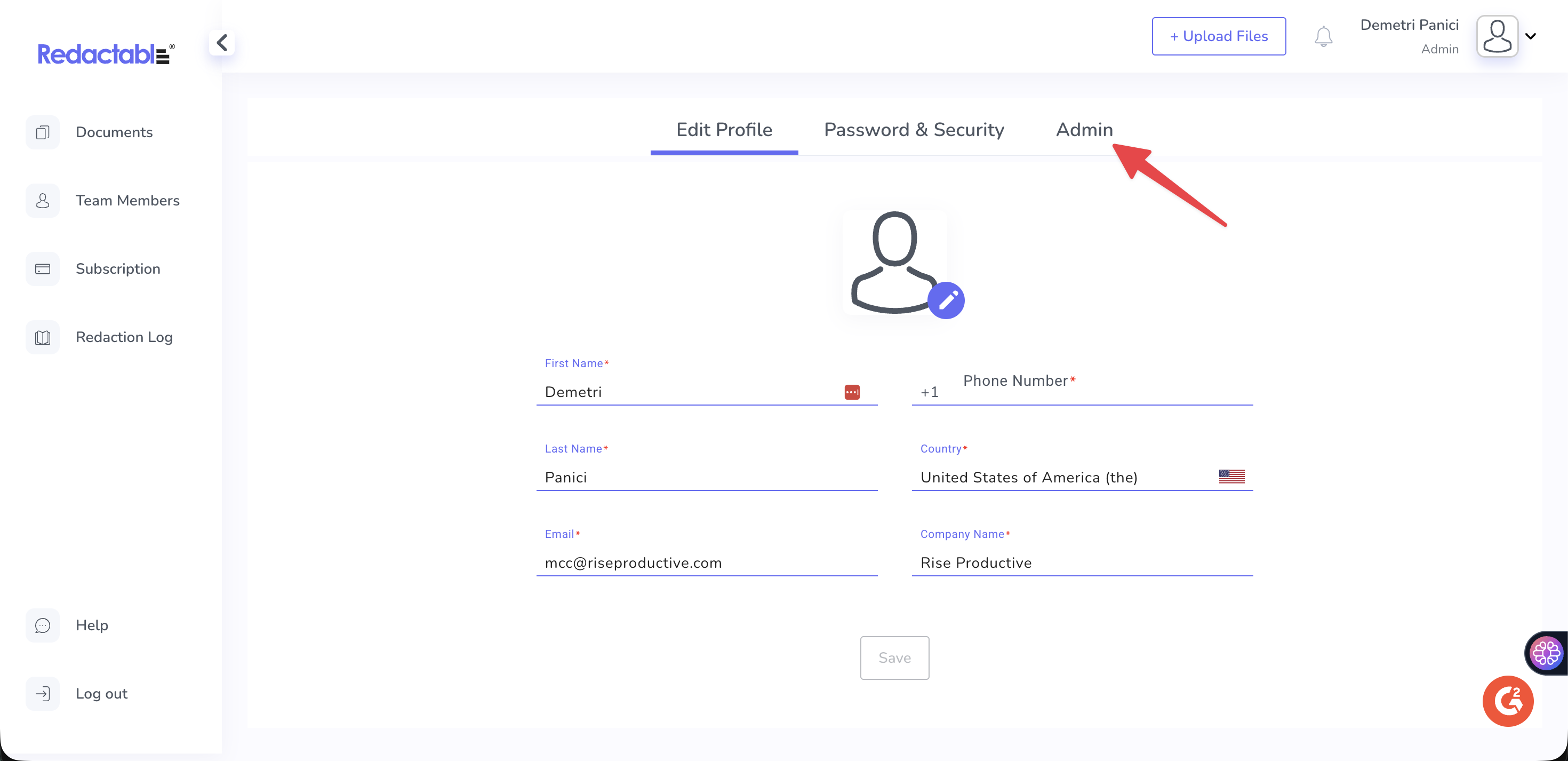
The Document Retention Policy lives under a new Admin tab in your profile. This tab is only visible to Admin and Billing Admin users, standard users and reviewers won't see it.
Why it matters
The Document Retention Policy is designed to give you control over document storage by:
- Setting your own retention period: Choose anywhere from 1 day up to 10 years, no request to the Redactable team required.
- Applying to existing and future documents: If it's enabled, the policy evaluates documents already in Redactable, not just ones finalized going forward.
- Showing impact before you commit: See exactly how many existing documents will become eligible for deletion before the setting takes effect.
- Resetting on re-finalization: If a document is re-finalized, its retention period resets based on the latest finalization date.
Previously, document retention settings had to be configured through the Redactable team, a support request, a backend change. Now, Admins and Billing Admins manage it directly within the application, and can adjust or disable the policy whenever needed.
Using the Document Retention Policy
Configuring your retention period
- Open your profile and select the Admin tab.
2. Under Document Retention Policy, enable the policy. If it's left disabled, documents will not be automatically deleted.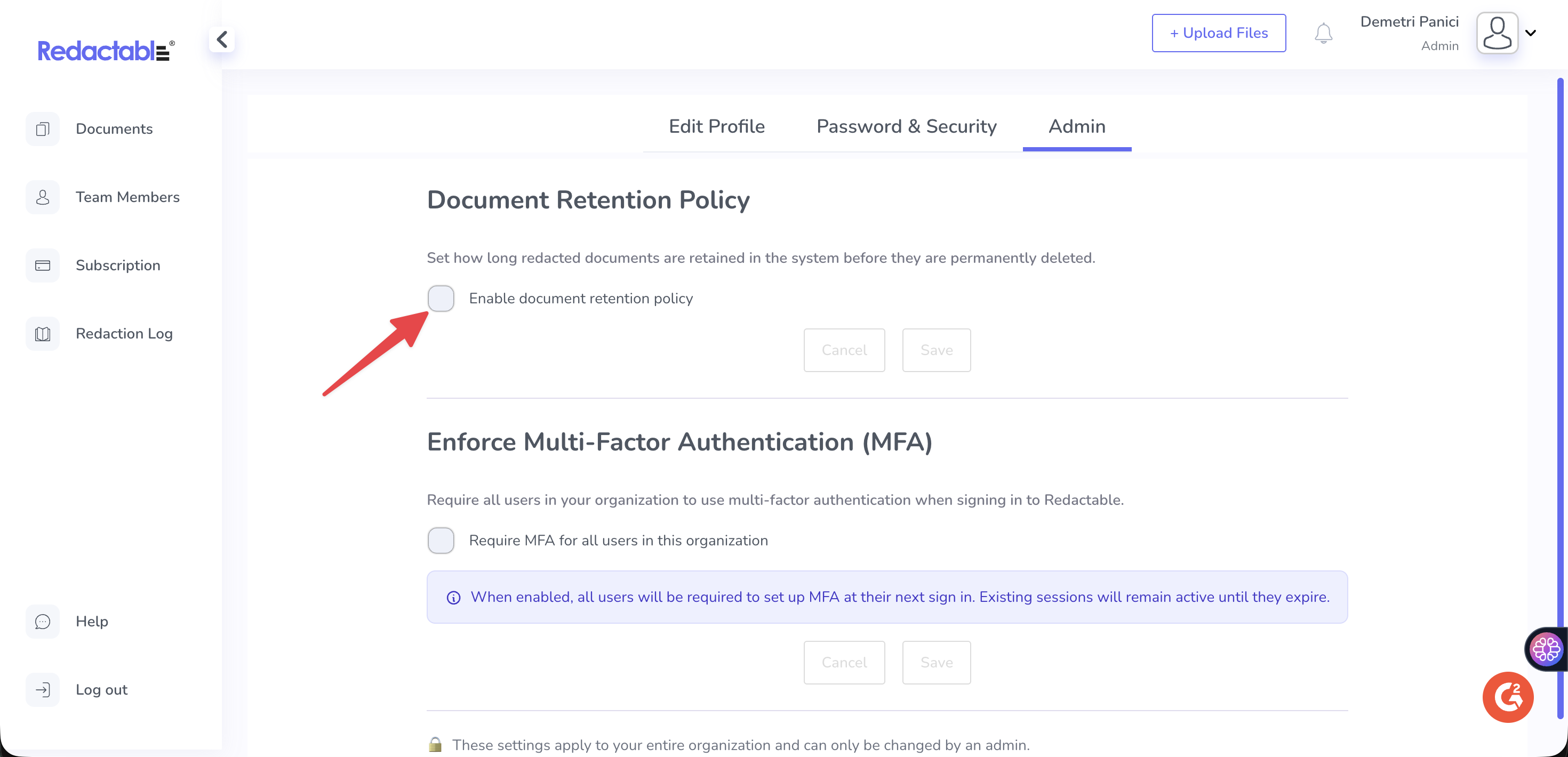
3. Enter the number of days you'd like finalized redacted documents to remain in Redactable. The minimum is 1 day, and the maximum is 10 years (3,650 days).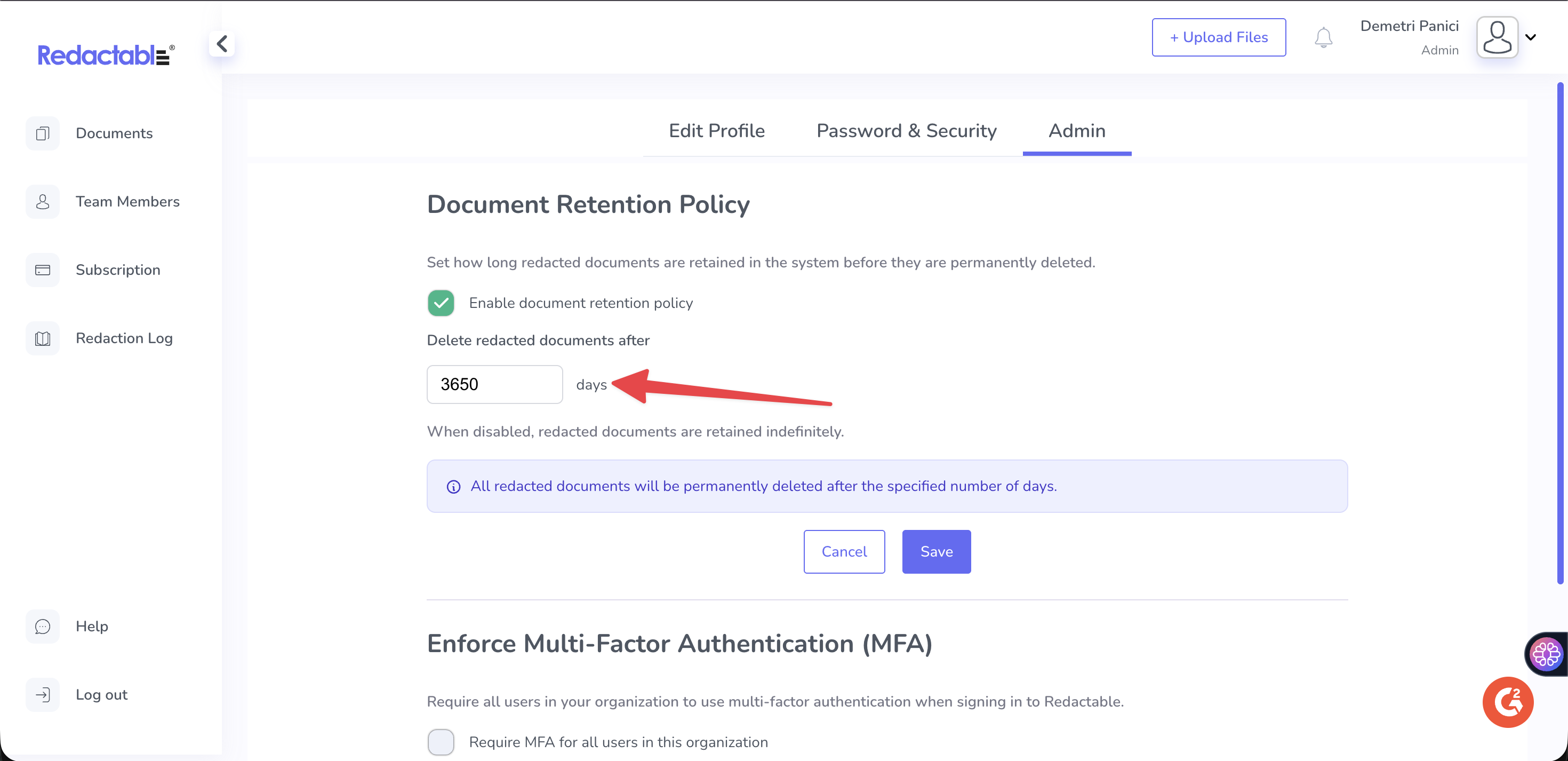
4. Click Save.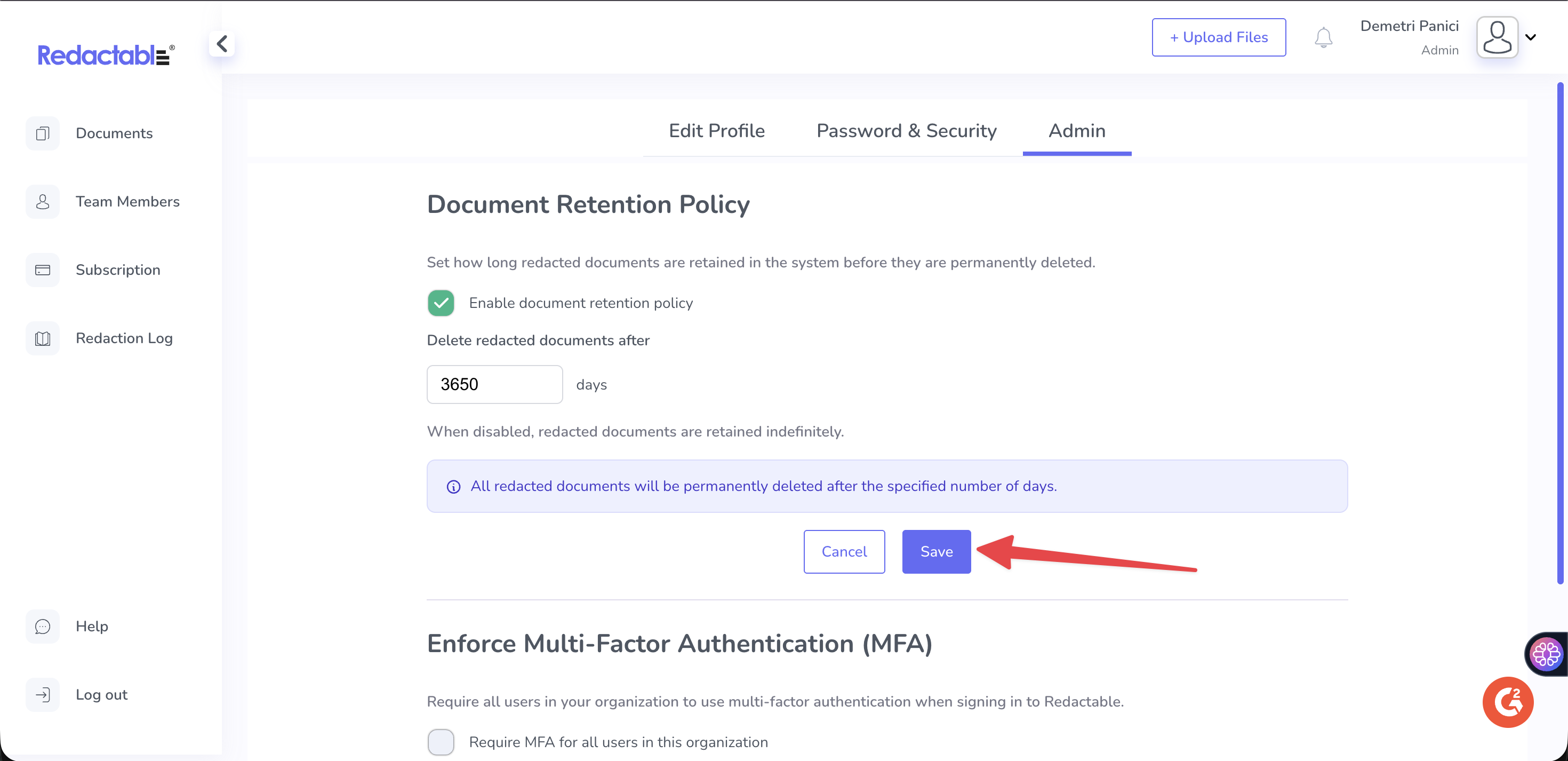
Reviewing the impact before it takes effect
Once you save, Redactable shows a confirmation of how many existing documents have already exceeded the selected retention period and will become eligible for permanent deletion. For example, saving a 1-day retention period might show that 26 existing documents already qualify.
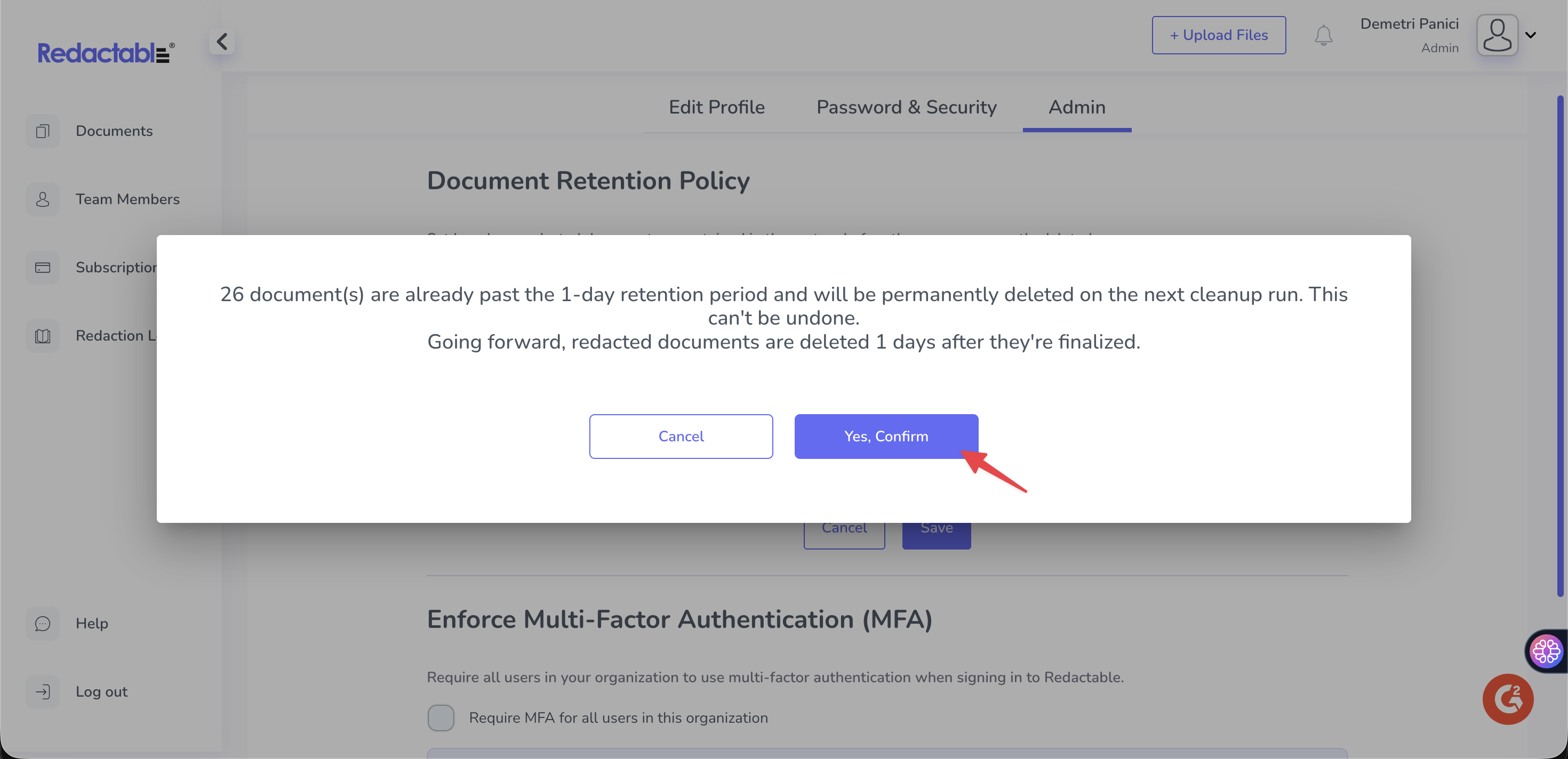
This applies to both new and old documents. If a document was finalized before the policy was enabled, it's evaluated against the retention period the same way a newly finalized document would be.
After confirming, documents are automatically purged once they exceed the configured retention period. The deletion process runs every hour.
Updating or disabling the policy
Admins and Billing Admins can return to this setting at any time to change the retention period or turn the policy off.
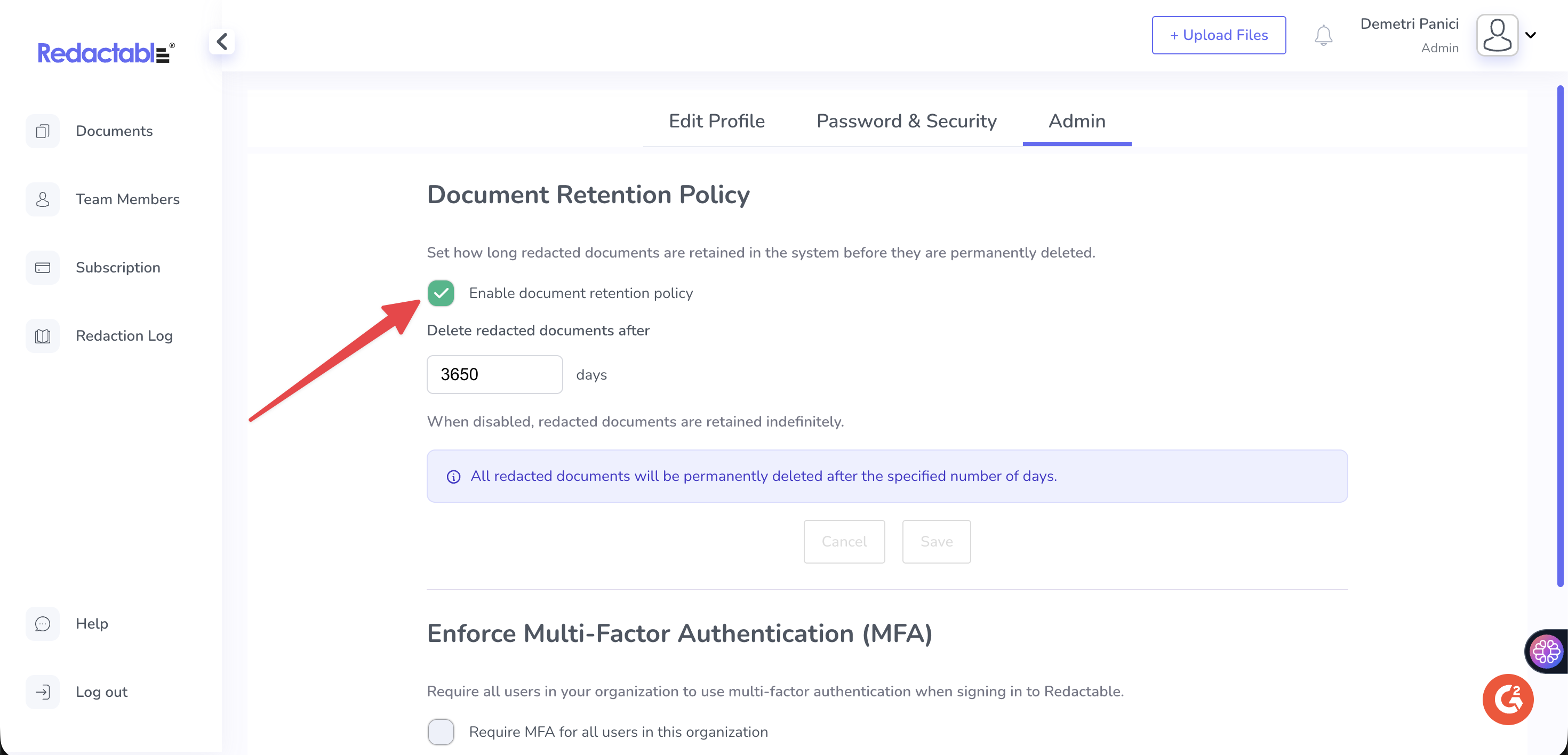
Turning the policy off stops future deletions, but it does not restore documents that were already deleted under the policy while it was active. Deleted documents cannot be recovered, so review the impact summary carefully before saving a new retention period.
We follow SOC2 guidelines and can furnish our SOC2 report. For more information, please contact us at support@redactable.com.
Was this article helpful?
That’s Great!
Thank you for your feedback
Sorry! We couldn't be helpful
Thank you for your feedback
Feedback sent
We appreciate your effort and will try to fix the article